How to sync data to another base in Airtable
Here is how to sync data to another base in airtable
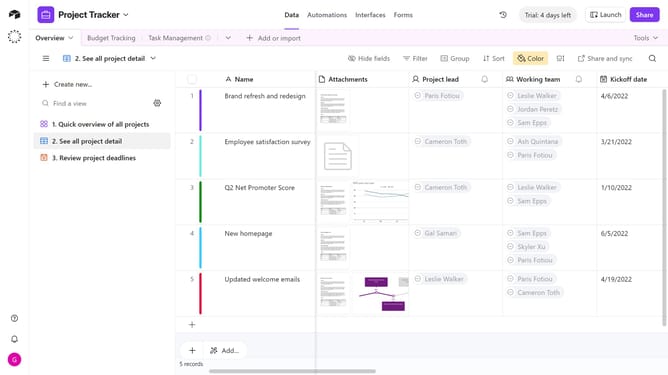
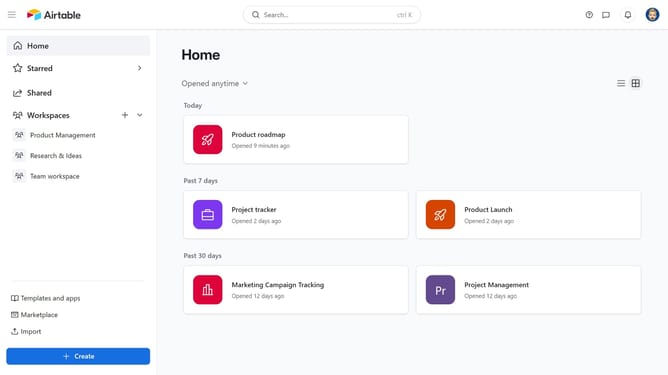
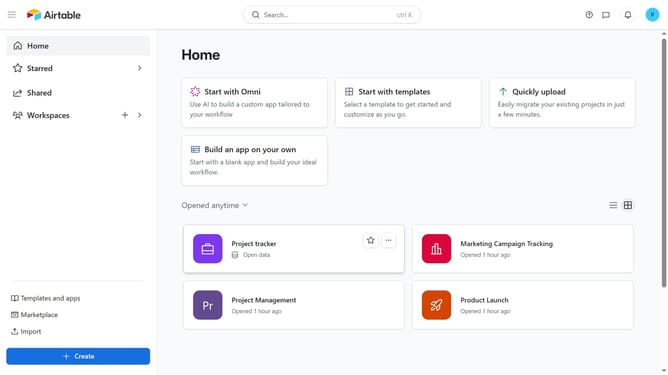
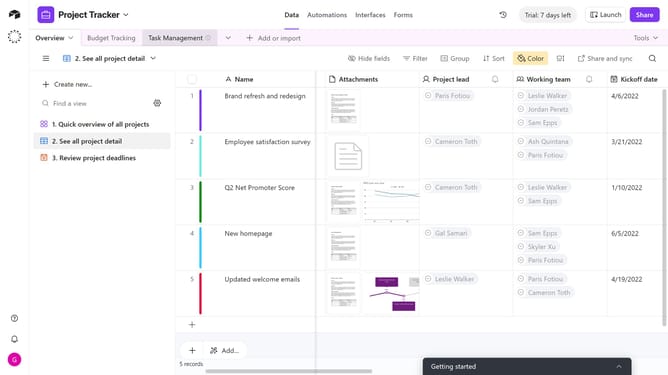
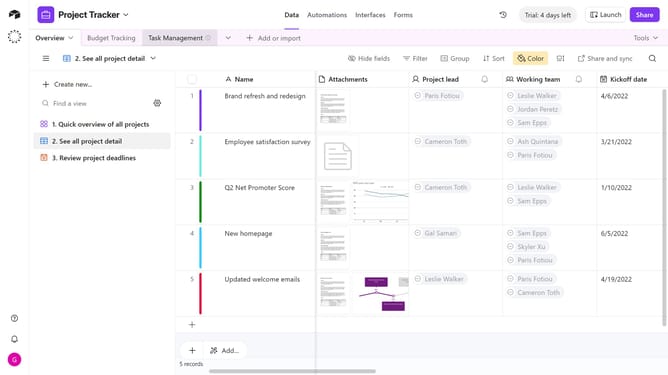
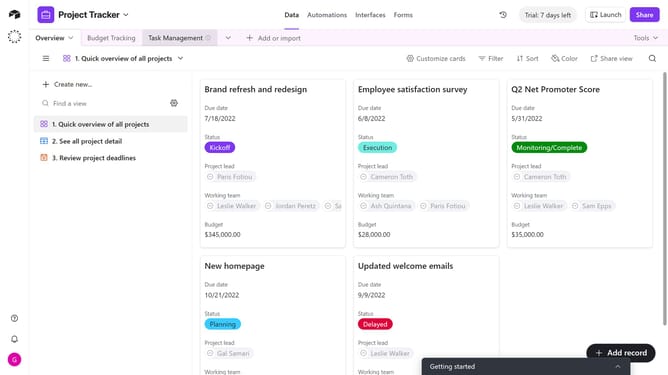
- First, navigate to a base and open the table containing the view you want to share
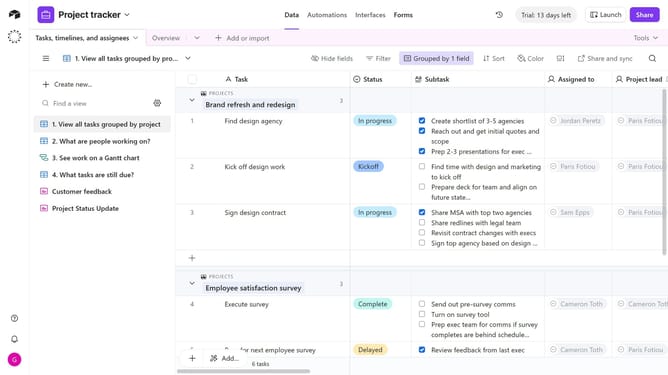
- Open the view sidebar and select the view you want to sync
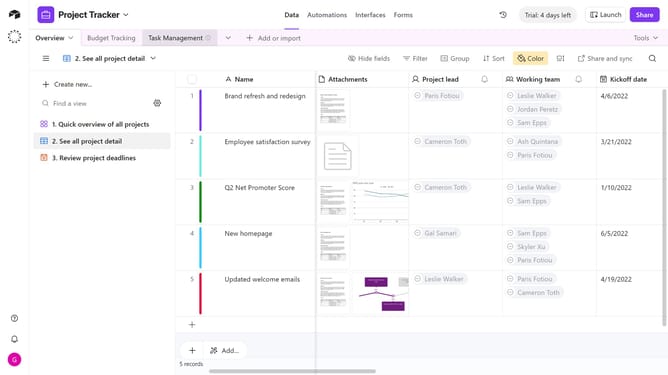
- Next click on the "Share and sync" button in the top toolbar
- Click on "Sync data to another base" option in the dropdown menu
- Then toggle on “Allow data in this view to be synced to other bases”
- In the additional options that appear, click “Sync this view”
- In the new tab that opens, click the Workspace dropdown
- Select your desired workspace from the workspace options
- Next click the Base dropdown and choose the destination base
- Select either “Create a synced table that will be kept up-to-date as this data changes” or “Copy this data into a new table that you can edit”, depending on your preference
- Finally, click the “Create table” button at the bottom to complete the sync and move the view to the selected base
Why should you sync data to another base in Airtable
Airtable is a versatile platform that combines the simplicity of a spreadsheet with the power of a database.
Syncing data to another base in Airtable offers seamless data management by enabling interconnected workflows across different teams or projects.
It reduces time spent on manual updates, ensuring consistency and accuracy.
This feature is invaluable for integrating diverse data sets, optimizing collaboration, and enhancing decision-making processes.
Last update