How to show all fields on cards in a kanban view in Airtable
Here is how to show all fields on cards in a kanban view in airtable
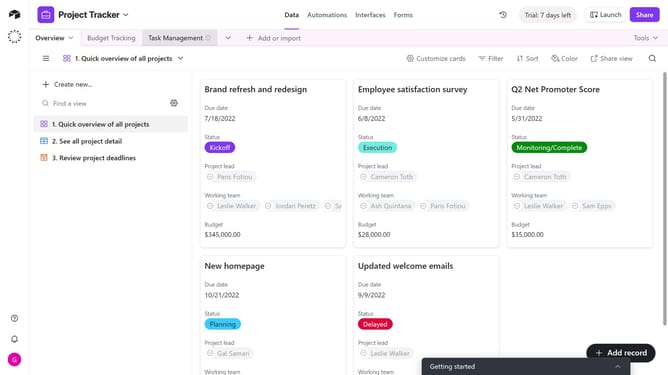
- First, navigate to your base and open the table containing the kanban view
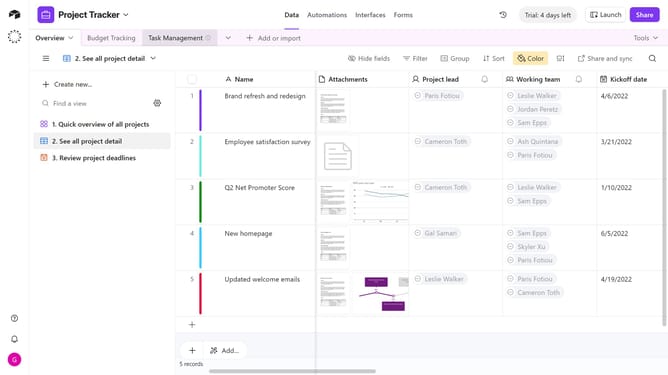
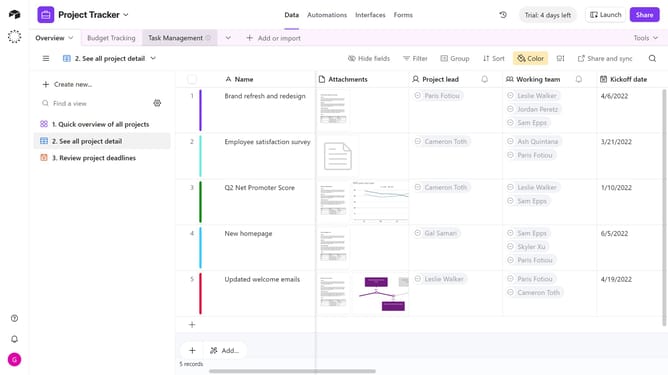
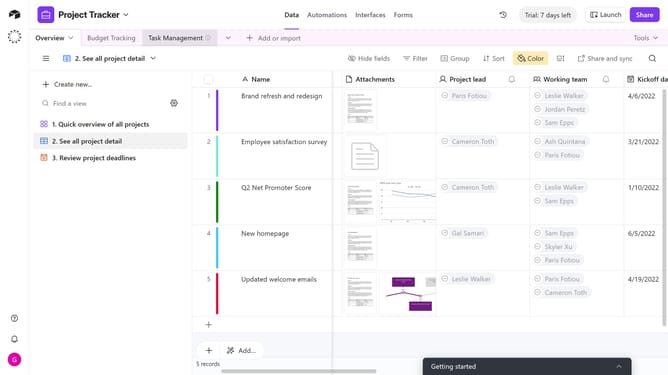
- In the view sidebar, select the kanban view you want to edit
- Next click on "Customize cards" button in the toolbar
- Finally click on the "Show all" button in the customize cards popup
- All fields will now be shown on each card in the kanban view
Why should you show all fields on cards in a kanban view in Airtable
Airtable is a versatile tool designed to streamline collaboration and organization through its intuitive database interface.
In the kanban view, showing all fields on cards in Airtable allows you to access critical information at a glance, enhancing your workflow efficiency.
This feature benefits users by centralizing data visibility, reducing the need to toggle between views, and promoting smoother team communication.
Ultimately, it empowers teams to prioritize and manage tasks more effectively, keeping projects on track and on time.
Last update