How to switch to gallery view in a data table in Zoom Docs
Here is how to switch to gallery view in a data table in zoom docs
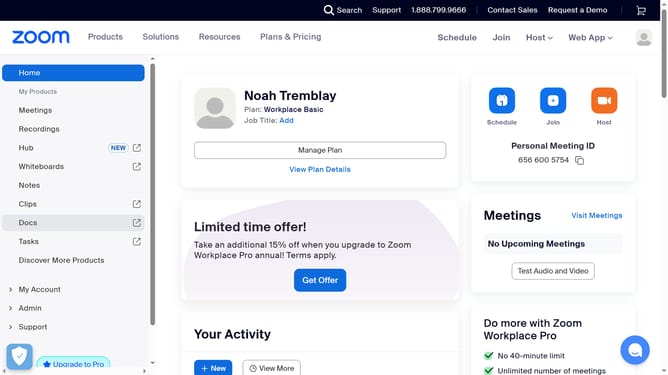
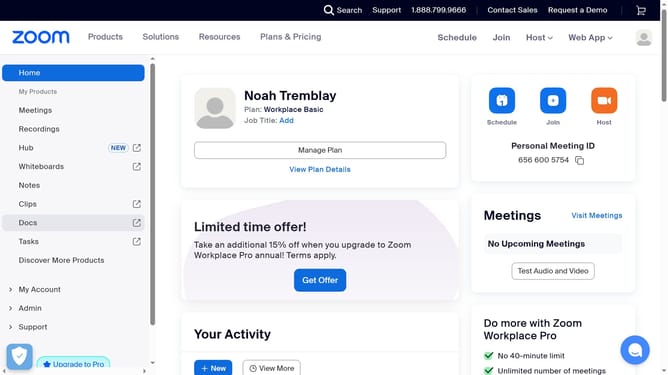
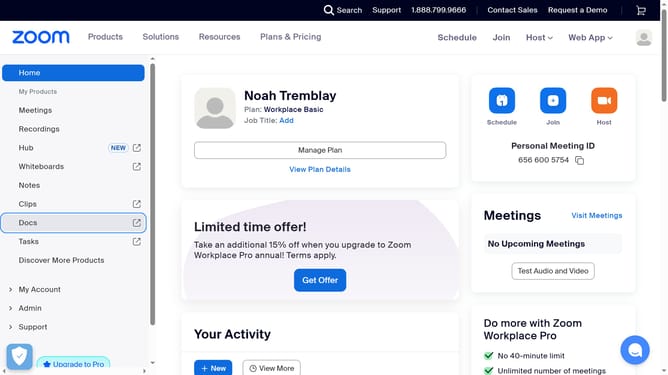
- First click on the "Docs" link in the left sidebar navigation menu
- Then open the data table you want to switch to gallery view
- Next click on the table options menu button located in the top toolbar
- Then hover over the "Change view to" option in the dropdown menu
- Finally select the "Gallery view" option from the view type submenu
Why should you switch to gallery view in a data table in Zoom Docs
Zoom, the dynamic platform for virtual communication, offers intuitive tools for productivity and collaboration.
Switching to gallery view in a data table within Zoom Docs enhances your ability to visualize information at a glance. The feature enables users to seamlessly navigate through complex data with ease and clarity.
By choosing this feature, you enjoy a more organized and intuitive layout that improves understanding and efficiency. This capability is designed to support better decision-making and streamline workflows.
Benefiting from a clean and accessible presentation, gallery view transforms data interactions into a more engaging experience.
Last update