How to show the to approve tab in PandaDoc
Here is how to show the to approve tab in pandadoc
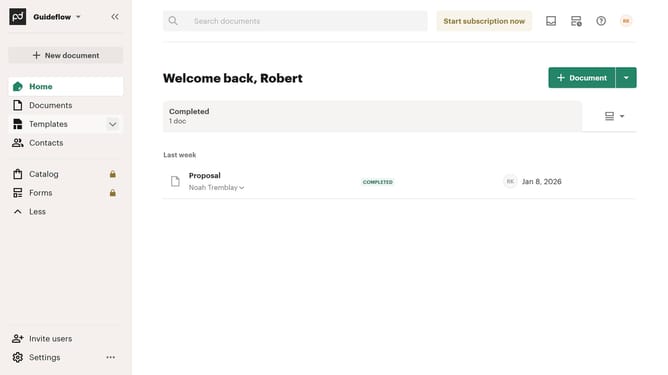
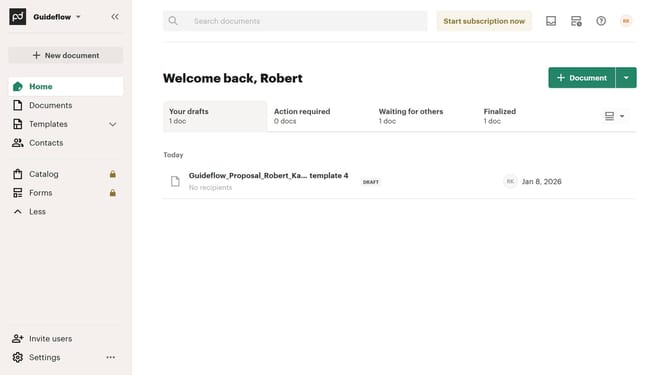
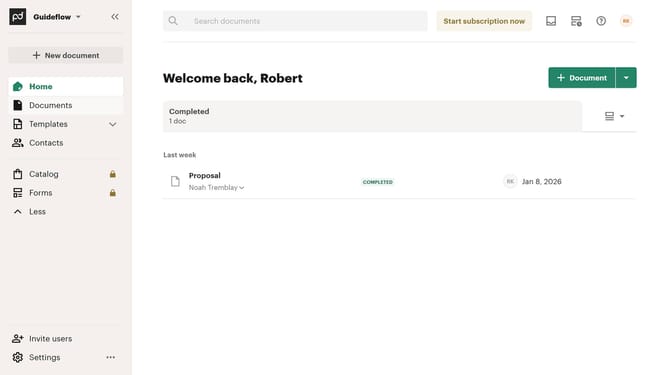
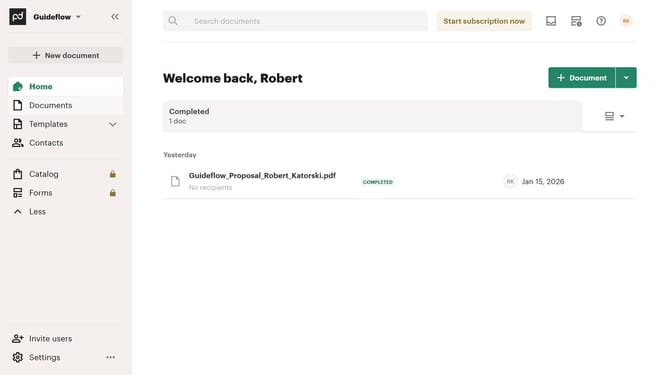
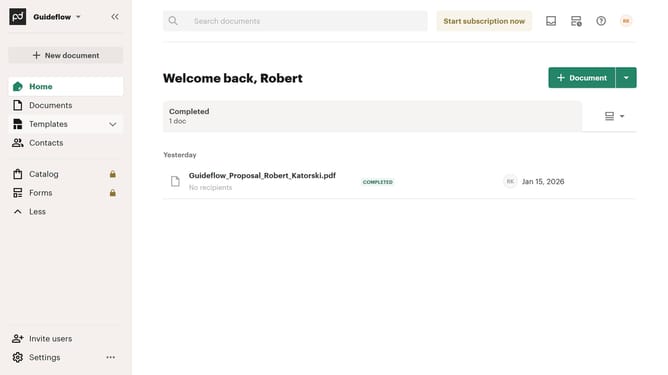
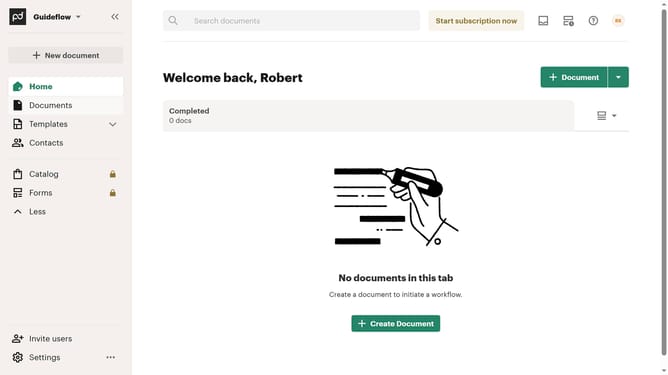
- First click on the dropdown menu button in the top right corner of the main content area to open the document view options
- Then click on the "Customize tabs" option from the dropdown menu to open the customization dialog
- Next click on the "To approve" checkbox in the TABS section of the Customize dialog to enable this tab
- Finally click on the "Apply" button at the bottom right of the Customize dialog to save the changes
Why should you show the to approve tab in PandaDoc
PandaDoc streamlines document creation and management, enhancing workflow efficiency and collaboration.
One helpful feature is the "To Approve" tab, which acts as a centralized hub for documents awaiting approval. This feature ensures that key documents don't fall through the cracks and are processed promptly.
Utilizing this feature allows teams to maintain greater control over document approvals, accelerating business processes. It promotes accountability, enhances communication, and instills confidence in the approval workflow.
Last update