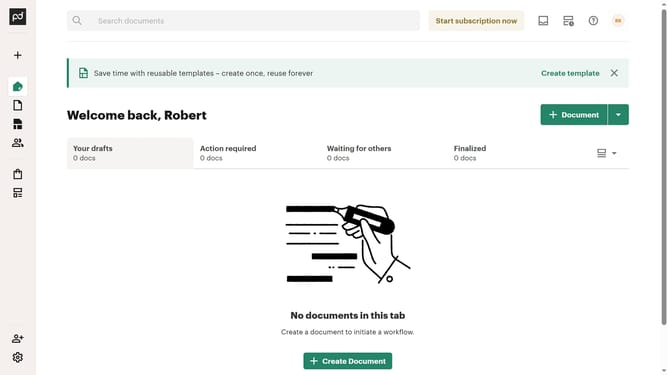
How to show the finalized tab in PandaDoc
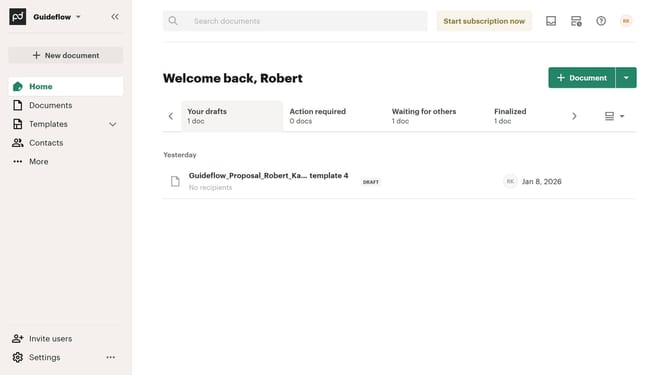
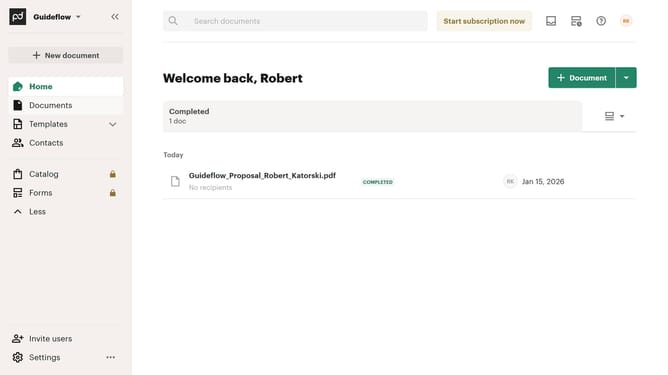
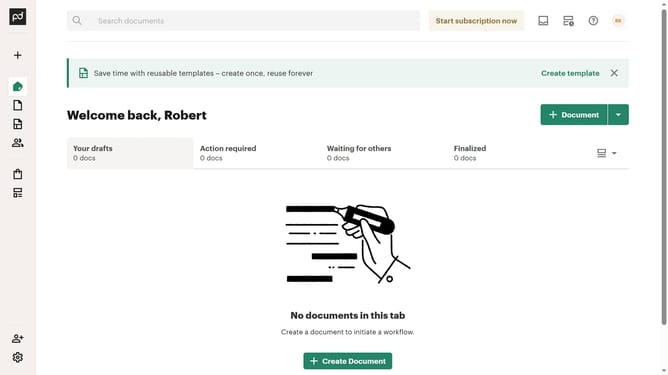
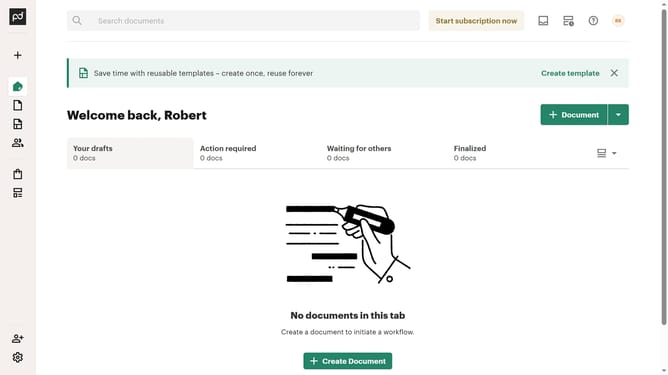
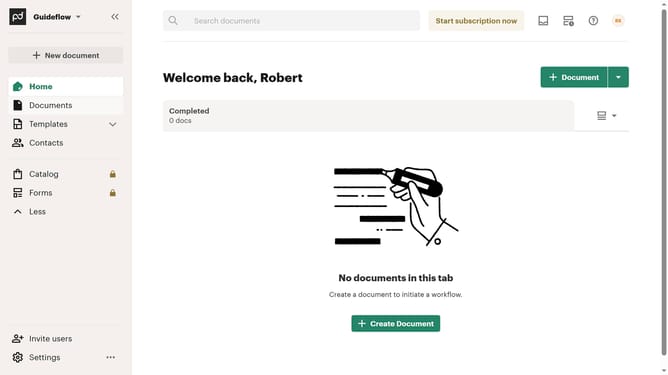
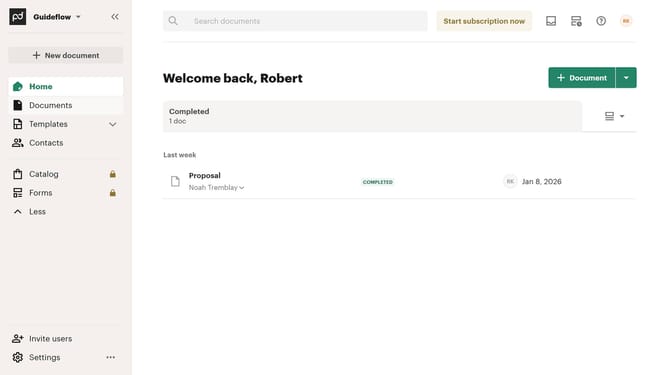
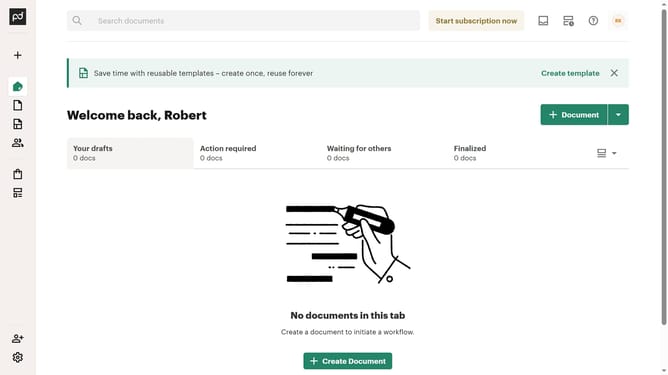
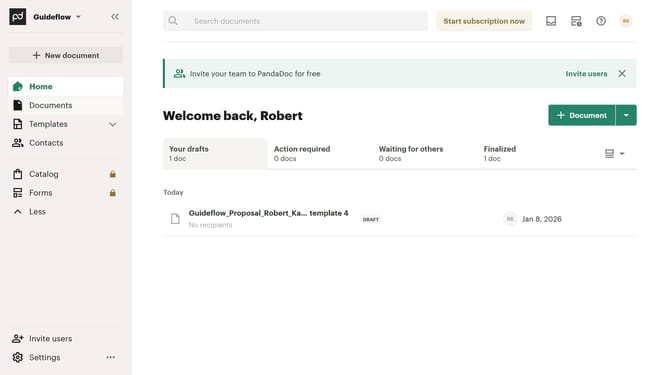
Here is how to show the finalized tab in pandadoc
- First click on the dropdown button in the top right corner of the document list area
- Then click on the "Customize tabs" option from the dropdown menu
- Next click on the "Finalized" checkbox in the TABS section of the Customize dialog
- Finally click on the "Apply" button at the bottom right of the Customize dialog
Why should you show the finalized tab in PandaDoc
PandaDoc is a dynamic platform designed to streamline and simplify document management and e-signatures for businesses.
One of its standout features is the ability to display the finalized tab, a section that neatly organizes completed documents for easy access and reference. This feature is crucial for maintaining an overview of finished documents without sifting through endless files.
By utilizing the finalized tab, you ensure an efficient workflow, where all completed tasks are readily available, boosting productivity and time management. It's an elegant solution to ensure your completed documents are always just a click away.
Last update