How to show the declined tab in PandaDoc
Here is how to show the declined tab in pandadoc
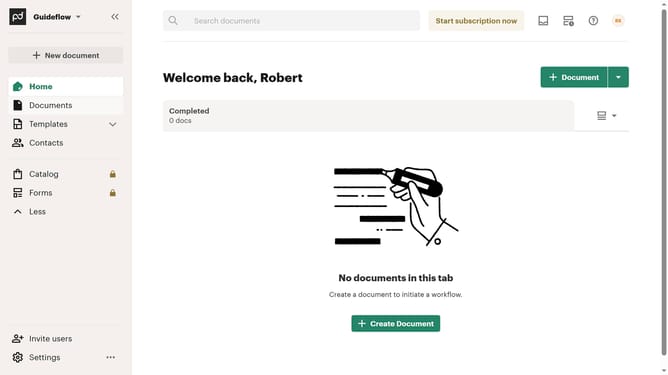
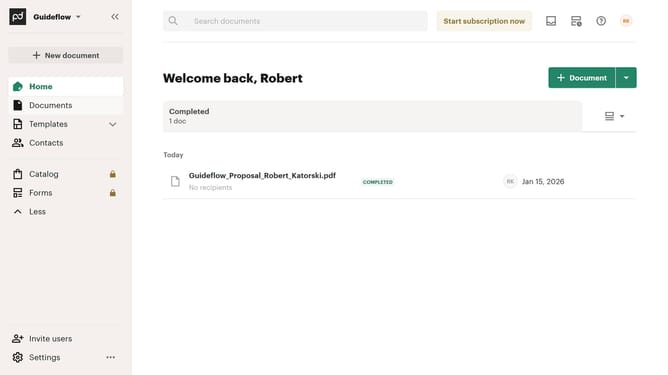
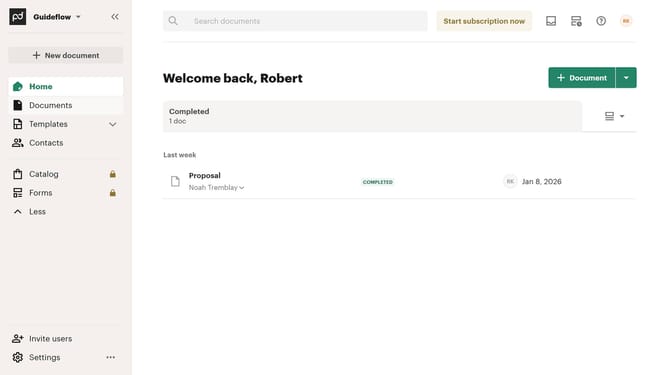
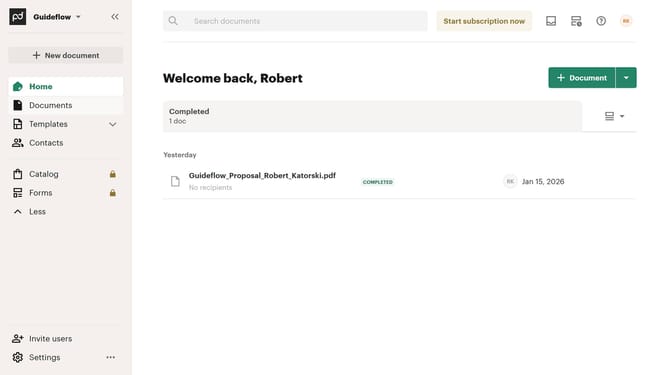
- First click on the view options dropdown button in the top right corner of the main content area
- Then click on the "Customize tabs" option from the dropdown menu
- Next scroll down in the customize dialog to view additional tab options
- Then click on the "Declined" checkbox to enable this tab option
- Finally click on the "Apply" button to save the customization changes
Why should you show the declined tab in PandaDoc
PandaDoc is an innovative platform designed to streamline the creation, delivery, and management of digital documents.
The "Declined" tab in PandaDoc plays a crucial role in maintaining transparency and control over your document workflows. By enabling this feature, you can easily access and review documents that haven’t been accepted, saving time and ensuring nothing falls through the cracks.
This feature empowers users by providing quick insights into client interactions, enabling proactive follow-ups and improving overall efficiency in managing document approvals.
Last update