How to show LI Reply rate column in Reply
Here is how to show li reply rate column in reply
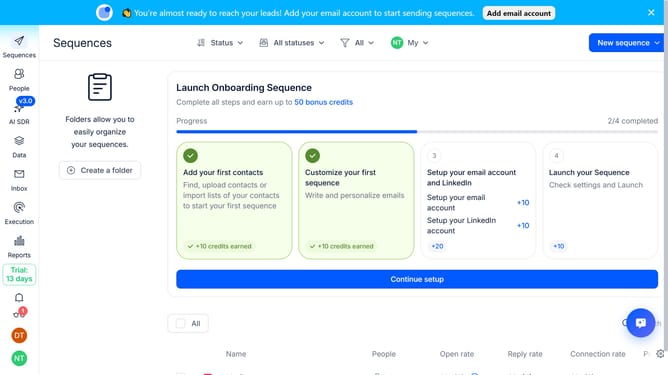
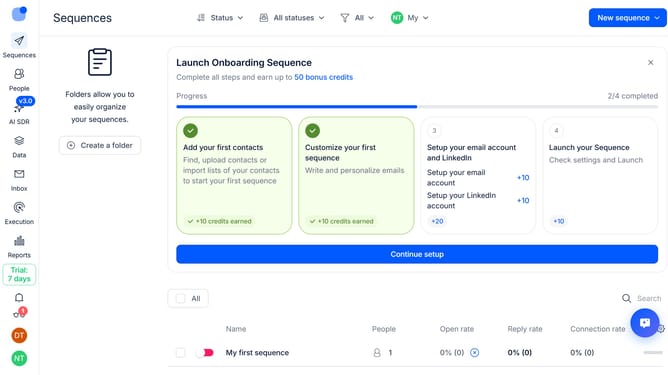
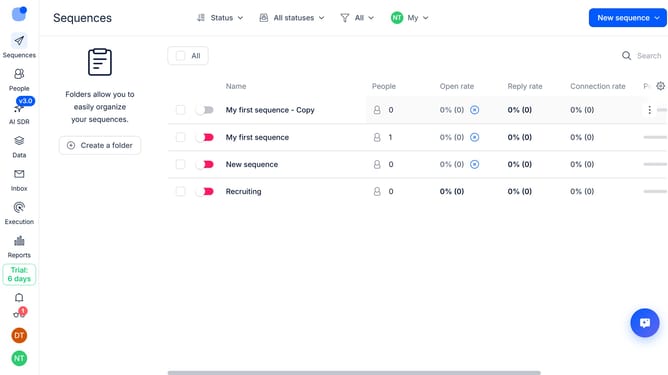
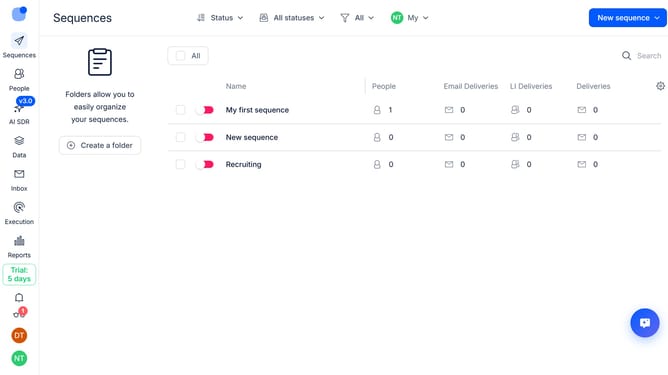
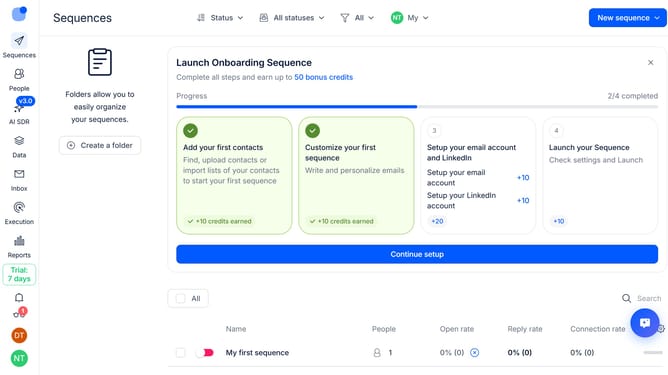
- First, click on the "Sequences" item in the left sidebar
- Then, click on the gear icon in the top-right of the page
- Next, click on the "Add column" button
- Finally, select "LI Reply rate" from the list of columns
Why should you How to show LI Reply rate column in Reply
Reply.io is a cutting-edge engagement platform that streamlines communication and automates outreach processes effectively.
Among its robust features is the ability to display the LinkedIn Reply rate column. This feature provides valuable insights into how prospects are engaging with your messages, specifically on LinkedIn.
By visualizing the reply rate, users can quickly identify which messages resonate most, allowing for more informed decision-making. It effectively aids in refining strategies to boost engagement and efficiency.
This feature not only enhances visibility but also optimizes your outreach efforts, leading to more successful interactions.
Last update