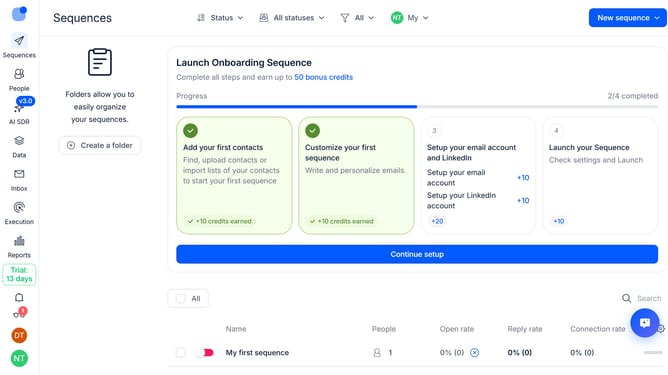
How to disable auto-enrich missing URLs in Reply
Here is how to disable auto-enrich missing urls in reply
- First click on the user icon in the bottom left sidebar
- Then click on 'Settings' in the user menu
- Next click on the 'Emails' item in the left sidebar menu
- Then scroll down to view more options
- Next click on the dropdown arrow next to 'LinkedIn URL Enrichment'
- Then turn off the toggle switch to disable the 'Auto-enrich missing URLs' option
- Finally click on the 'Save settings' button
Why should you How to disable auto-enrich missing URLs in Reply
Reply.io is a powerful platform designed to streamline and enhance your sales engagement processes.
Disabling the auto-enrich missing URLs feature in Reply.io can provide greater control over your data management, ensuring that all links included are thoroughly vetted before being used. This can result in more precise communication, as every URL is carefully curated and intentional.
Opting to disable this feature can enhance your team's efficiency by eliminating unnecessary distractions and maintaining a focus on quality content. It's a strategic choice that values accuracy and reliability in your outreach efforts.
Last update