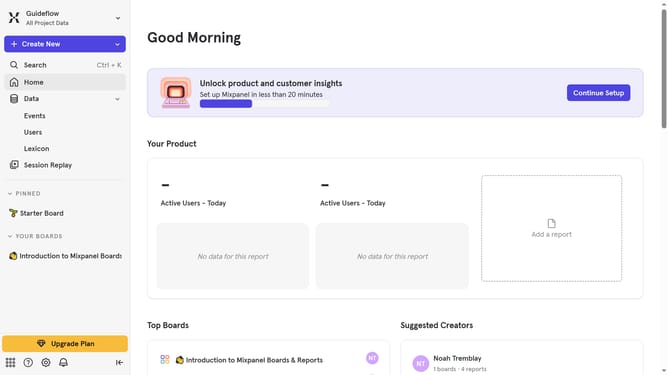
How to show image column in events in Mixpanel
Here is how to show image column in events in mixpanel
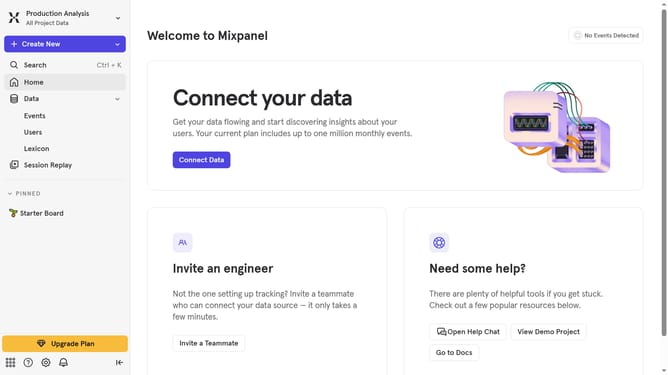
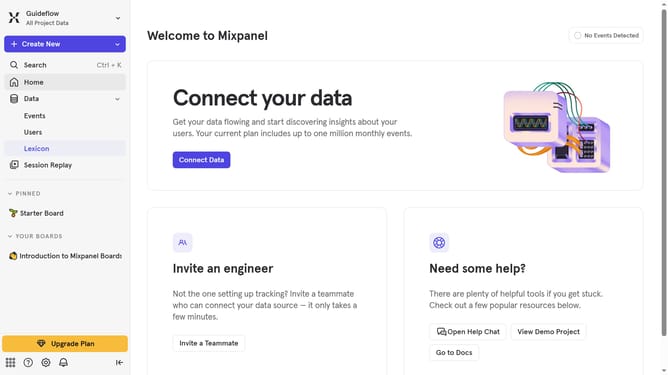
- First, click on "Lexicon" in the sidebar
- Then click on the "Edit Columns" button
- Next, scroll down in the dropdown menu
- Finally, click on the checkbox next to "Image" option
Why should you show image column in events in Mixpanel
Mixpanel is a powerful analytics tool designed to help businesses understand user behaviors to enhance their product strategies.
Including an image column in events within Mixpanel allows users to visualize data in a more engaging and meaningful way. This feature brings events to life, making them not just numbers but stories told through visuals.
Utilizing this feature can lead to improved data comprehension and faster insights. With an image column, teams can more easily identify trends and correlations, ultimately fostering better decision-making processes.
Last update