How to set the time zone for date signed to recipient in DocuSign
Here is how to set the time zone for date signed to recipient in docusign
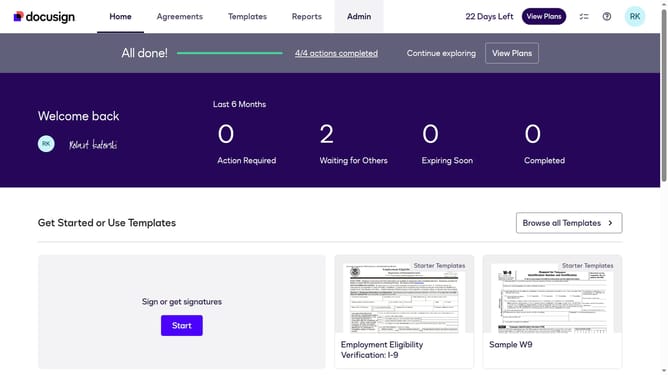
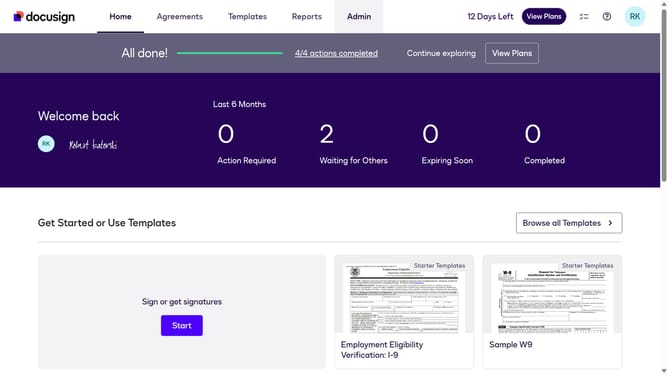
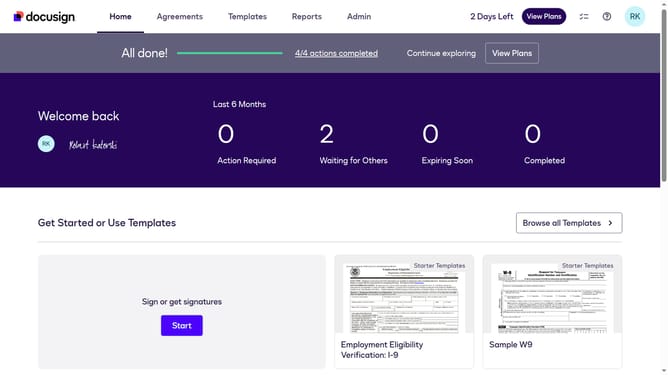
- First click on the "Admin" link in the top navigation menu
- Then click on "Regional Settings" in the left sidebar under the ACCOUNT section
- Next scroll down to view more options
- Then click on the "Recipient" radio button option under the question "When using the Date Signed field, which Time Zone should be used?"
- Finally click on the "Save Changes" button to apply the settings
Why should you set the time zone for date signed to recipient in DocuSign
DocuSign revolutionizes document workflow by enabling secure electronic signatures.
Setting the time zone for the date signed to a recipient enhances accuracy by aligning document timestamps with the recipient's local time.
This feature ensures clarity and precision, promoting a better understanding and reducing discrepancies for global teams.
By using this, businesses streamline operations while fostering trust and transparency in their digital communications.
Last update