How to set the time to live token expired landing page in DocuSign
Here is how to set the time to live token expired landing page in docusign
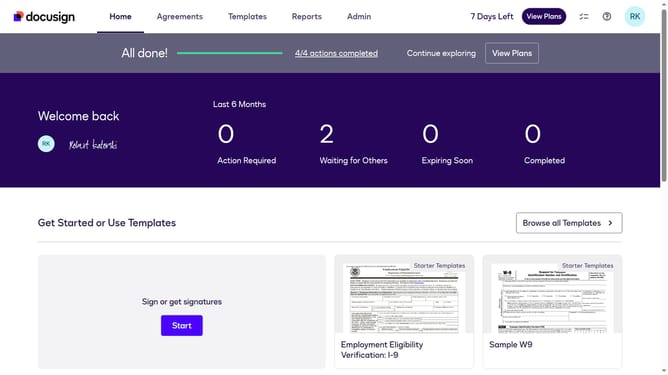
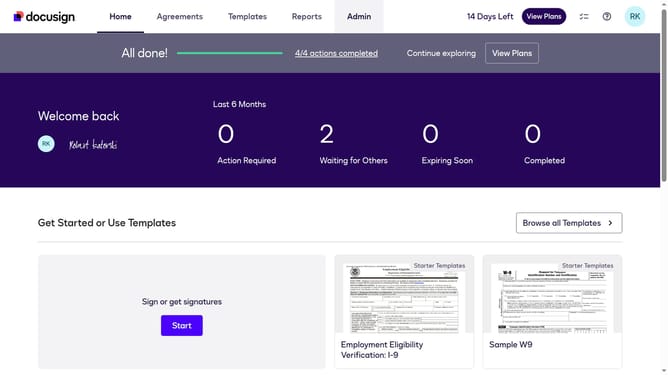
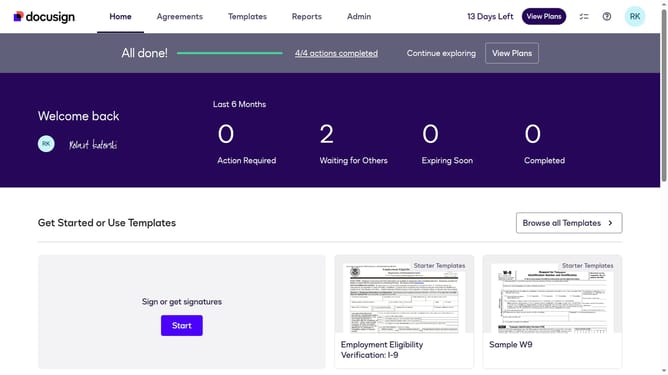
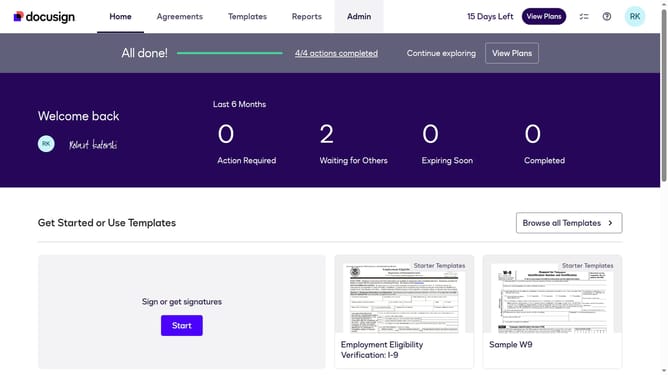
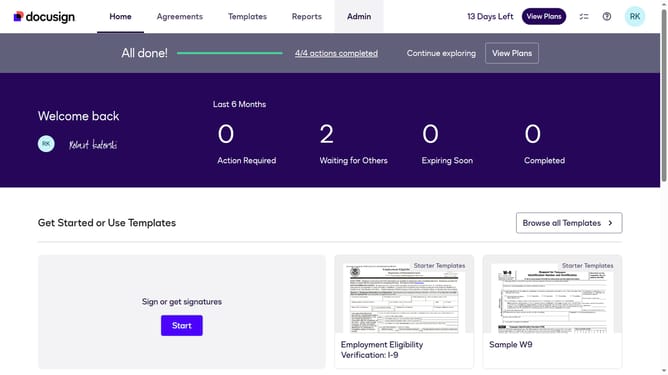
- First click on the "Admin" link in the top navigation menu
- Then scroll down the page to view additional admin options
- Next click on "Signing Settings" in the left sidebar under the "SIGNING AND SENDING" section
- Then click on the "In-session Landing Pages" button in the Signing Experience section
- Next scroll down the page to view the "Time To Live token expired" field
- Then click on the "Time To Live token expired" input field and enter your custom URL
- Finally click on the "Save Changes" button to save the configuration
Why should you set the time to live token expired landing page in DocuSign
DocuSign is a powerful tool that revolutionizes how businesses manage and execute electronic agreements seamlessly.
One of the crucial features in DocuSign is the ability to set the time-to-live (TTL) token expired landing page. This functionality enhances security by defining how long a session lasts, ensuring sensitive documents are accessed only within a specified timeframe.
By customizing the TTL token settings, users can protect their transactions while improving user experience, offering a well-balanced approach to security and efficiency in document management.
Last update