

How to set the rectangles opacity in a sketch in Slite
Here is how to set the rectangles opacity in a sketch in slite
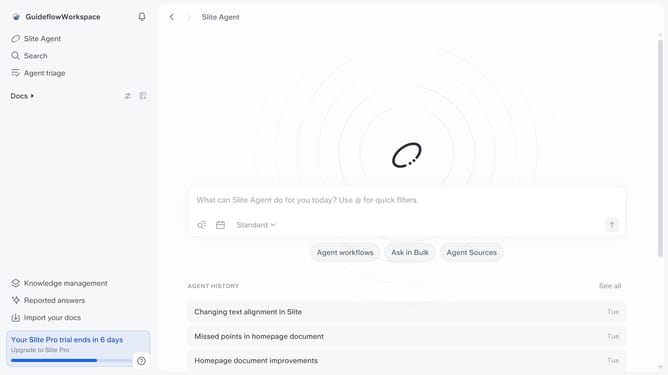
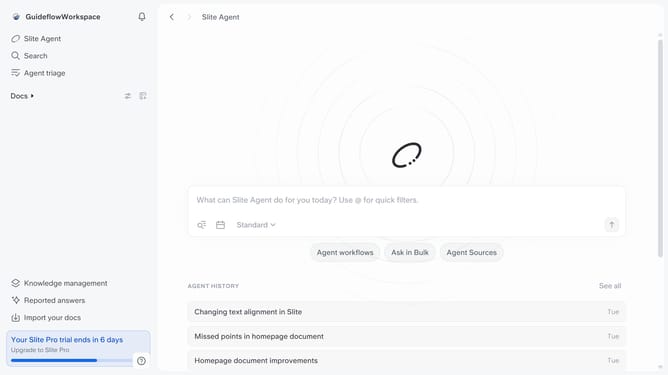
- First click on the "Docs" item in the left sidebar
- Then click on the document name that you want to open
- Then click on the sketch in the document
- Then click on the "Edit" button
- Then click on the rectangle shape in the canvas area
- Finally drag the "Opacity" slider to the right to adjust opacity
Why should you How to set the rectangles opacity in a sketch in Slite
Slite is a collaborative workspace designed to simplify team communication and document management.
Adjusting the opacity of rectangles in a sketch within Slite enhances visual hierarchy and focus in your designs. By setting the opacity, you can create subtle layers that guide the viewer’s attention where it’s needed most. This feature is perfect for emphasizing certain elements without overwhelming the entire composition.
Using opacity effectively can lead to more aesthetically pleasing and functional designs. It fosters creativity and clarity, allowing teams to convey ideas more effectively.
Last update