How to set the declined landing page in DocuSign
Here is how to set the declined landing page in docusign
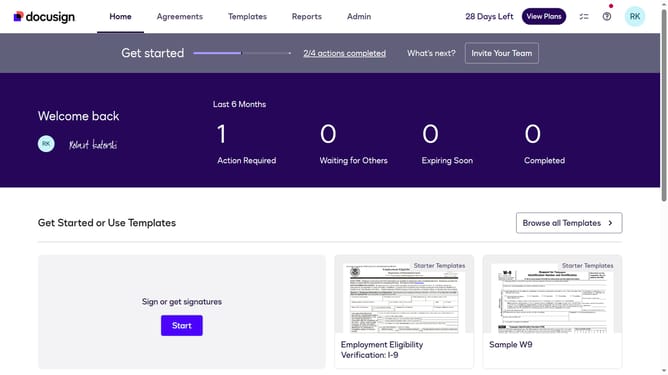
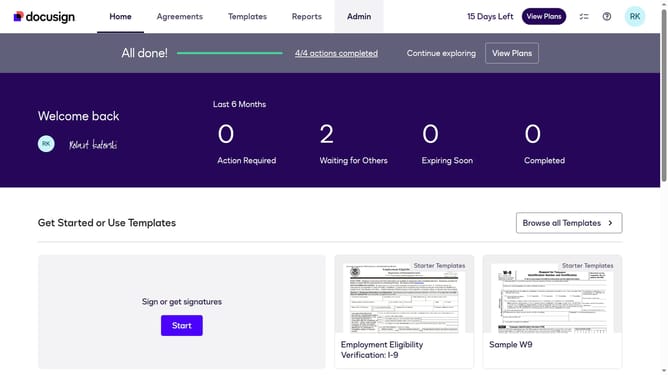
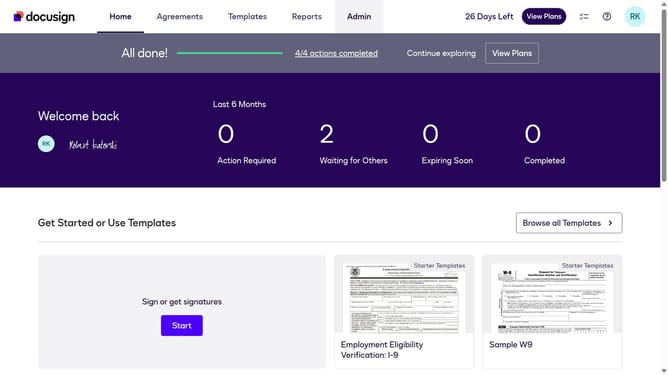
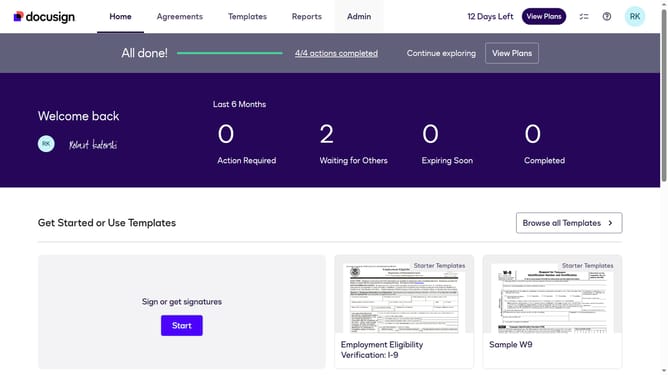
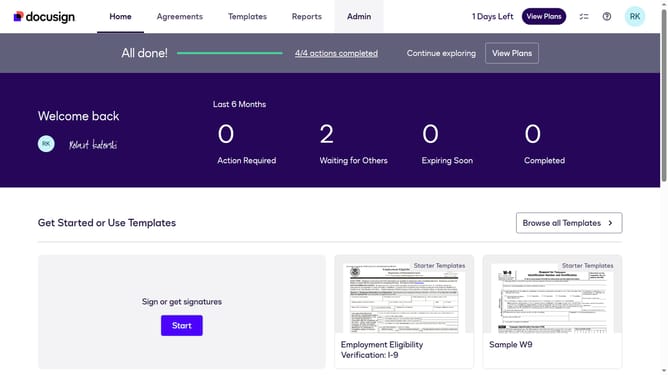
- First click on the "Admin" tab in the top navigation menu
- Then scroll down and click on the user profile icon in the top right corner
- Next click on "Signing Settings" in the left sidebar under the "SIGNING AND SENDING" section
- Then click on the "In-session Landing Pages" button in the Signing Experience section
- Next click on the "Declined" text field to edit the URL
- Then scroll down to view additional configuration options on the page
- Finally click on the "Save Changes" button to save the configuration
Why should you set the declined landing page in DocuSign
DocuSign is an innovative digital platform enabling seamless management of electronic agreements.
The declined landing page feature allows you to create a positive user experience even when a document is not accepted by redirecting individuals to a customized page.
By setting a declined landing page, you maintain open communication, ensuring that senders and recipients are in sync, minimizing confusion.
This feature reinforces trust and professionalism in your interactions, showing attention to detail and enhancing overall engagement.
Last update