How to set outbound email message background on Intercom
Here is how to set outbound email message background on intercom
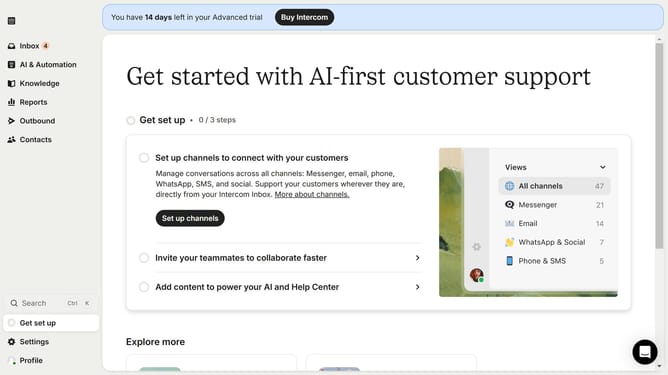
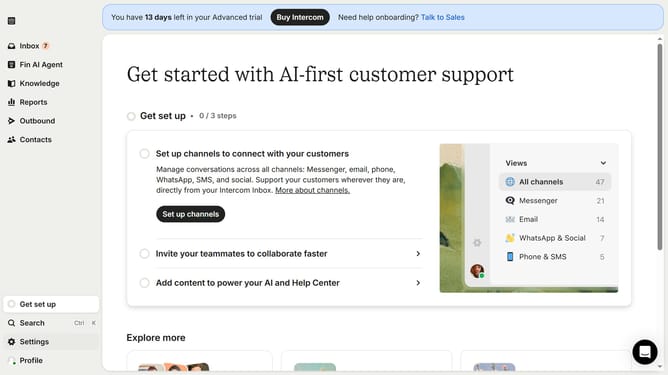
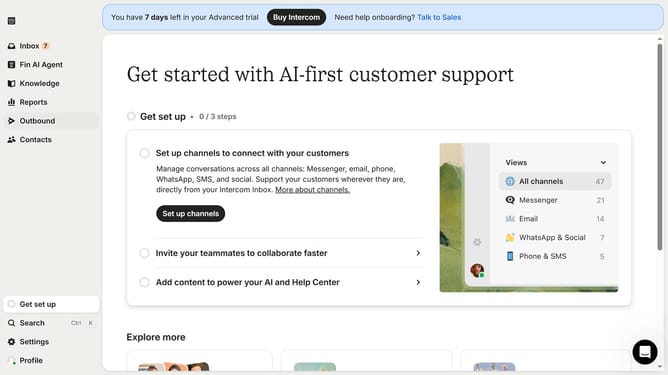
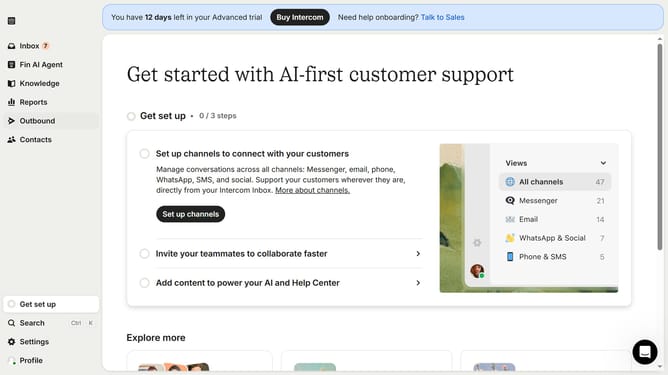
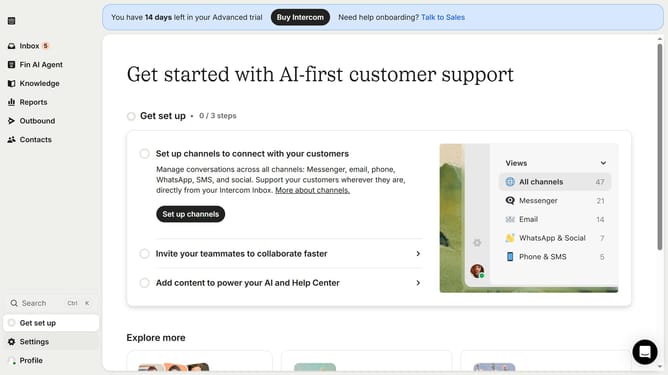
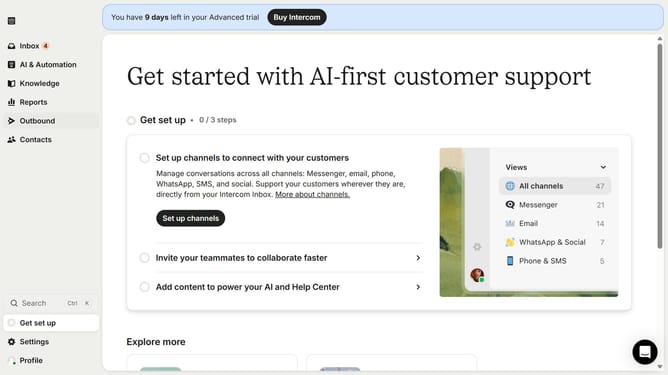
- First, click on "Outbound" in the left sidebar
- Then click on the email that you want to manage in the main content area
- Next, click on the "Edit" button
- After that, click on the checkbox to select the element
- Then, click on the color in the color palette
- Finally, click on the "Save and close" button
Why should you set outbound email message background on Intercom
Intercom is an innovative platform designed to enhance customer communication through personalized messaging.
Setting an outbound email message background on Intercom allows businesses to create visually appealing emails that stand out in customers' inboxes.
This feature enables brands to reinforce their identity and reinforce engagement, making the communication experience more memorable.
By customizing the email background, your messages not only capture attention but also convey professionalism and creativity, driving better customer interactions.
Last update