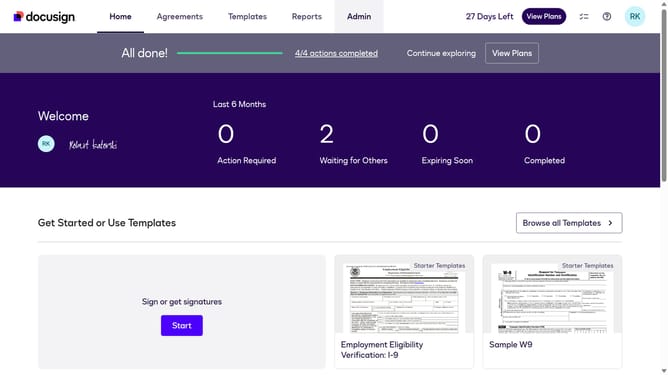
How to set auto-navigation to navigate blank required fields in DocuSign
Here is how to set auto-navigation to navigate blank required fields in docusign
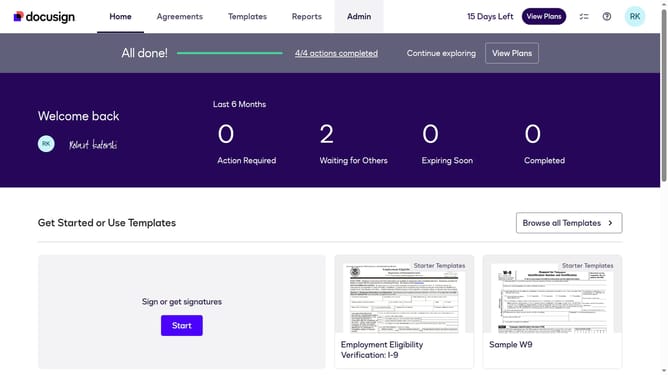
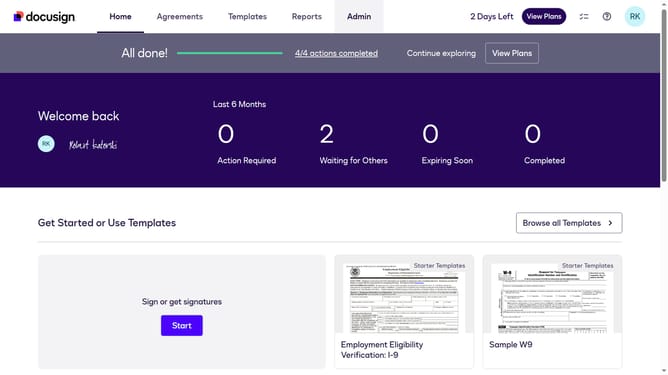
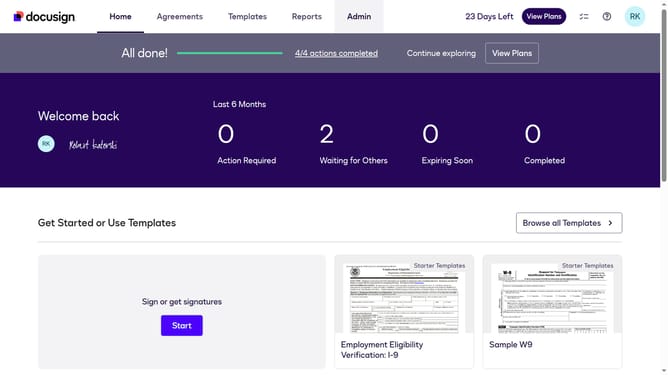
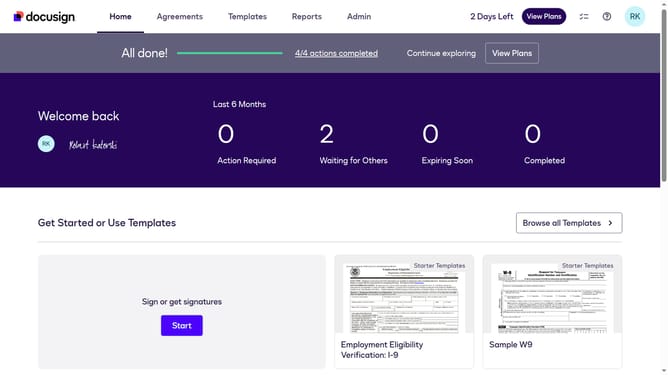
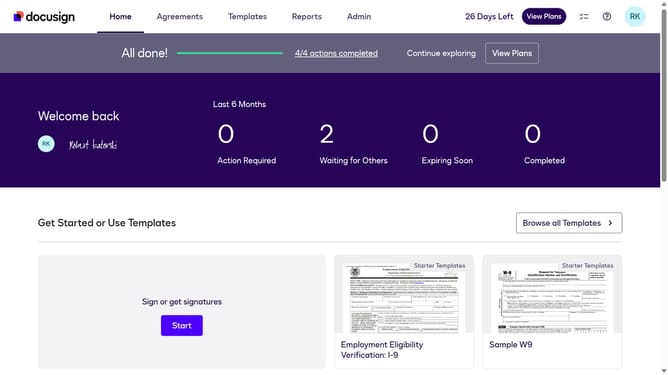
- First click on the "Admin" tab in the top navigation menu
- Then scroll down to view more options
- Next click on "Signing Settings" in the left sidebar under the "SIGNING AND SENDING" section
- Then click the dropdown menu under the "Auto-Navigation" section and select the "Navigate blank required fields" from the available options
- After that scroll down the page to view additional signing settings options
- Finally click on the "Save Changes" button to apply the modified settings
Why should you set auto-navigation to navigate blank required fields in DocuSign
DocuSign offers a seamless way to manage digital agreements effortlessly.
The auto-navigation feature in DocuSign simplifies the signing process by automatically guiding users through blank required fields. By setting up this feature, the time spent on checking each field is drastically reduced, ensuring a smoother user experience.
This functionality benefits signers by minimizing errors and omissions, enhancing document accuracy. As a result, businesses see faster completion times, boosting productivity and facilitating a seamless workflow.
Last update