How to set a side image for a sign-up form in Klaviyo
Here is how to set a side image for a sign-up form in klaviyo
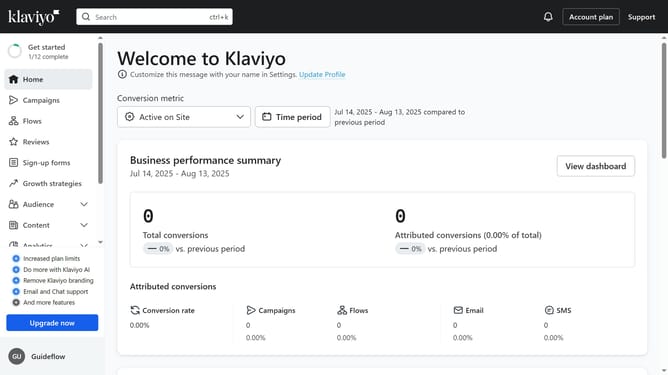
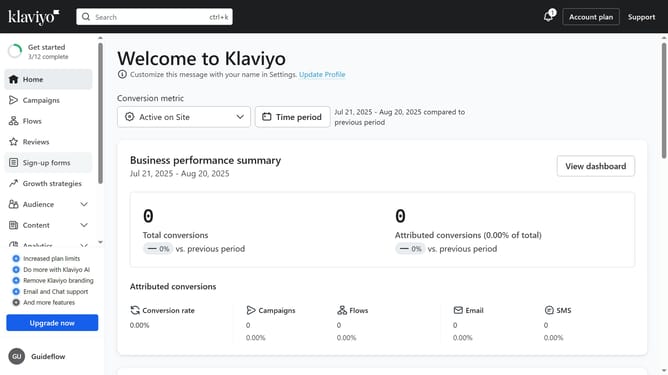
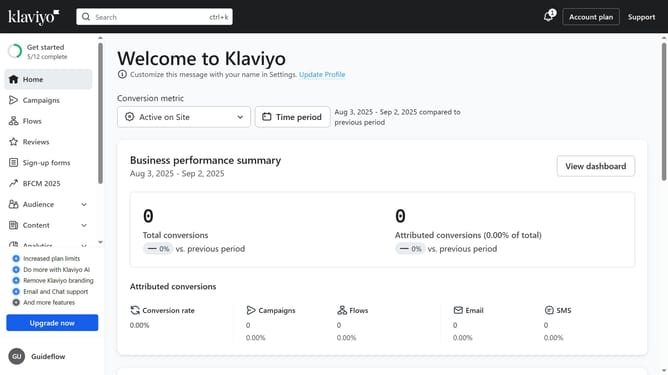
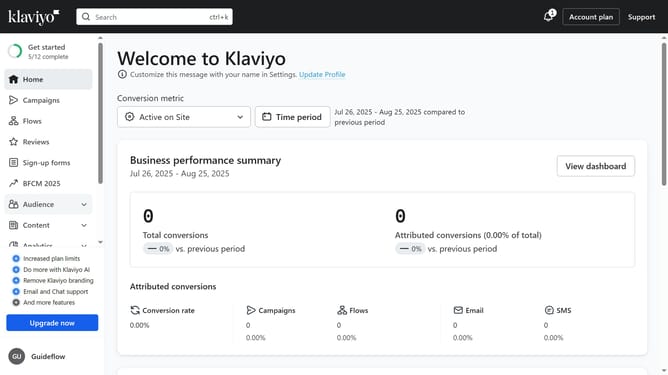
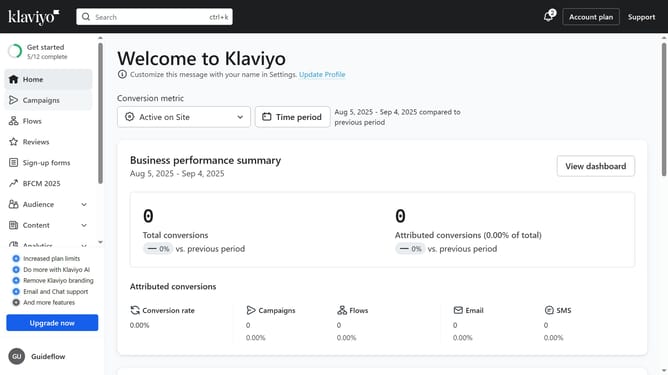
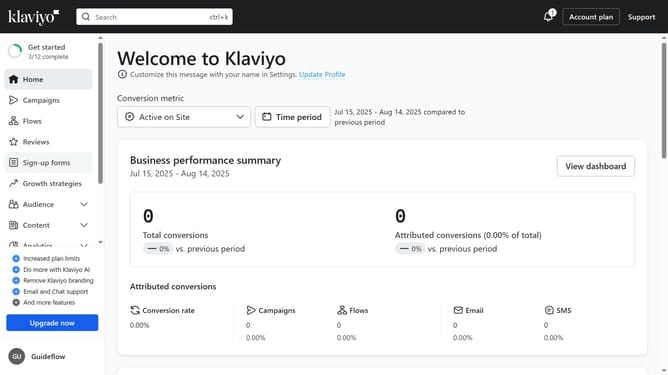
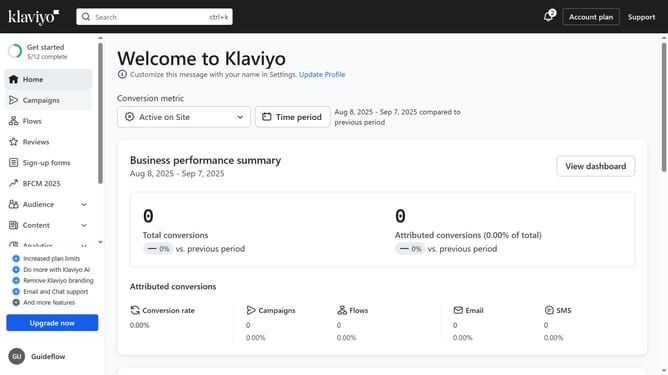
- First click on "Sign-up forms" in the left sidebar menu
- From the list, locate the form where you want to add a side image
- Next click on the options menu (three dots) next to the form
- Select "Edit" from the dropdown menu
- Head to the "Styles" section and scroll to the Side Image settings
- Select "Left image" or "Right image", depending on where you’d like the image to appear
- Then click on the "Side image" in the form to open its settings
- Click on "Select image" button in the side image upload area
- In the Image library, you can select an existing image
- To upload a new image, click on "Upload image" tab
- Then click the "Select Image" button in the upload area and choose an image from your device
- Next, choose an upload version option (Original or Compressed)
- Then click the "Upload" button to upload the selected image
- Once uploaded, adjust the image’s settings if needed
- Finally click the "Publish changes" button in the top-right corner to apply the side image to your form
- The form will now display with your selected side image
Why should you set a side image for a sign-up form in Klaviyo
Klaviyo is a powerful email marketing tool designed to help businesses grow through personalized and data-driven campaigns.
Enhancing a sign-up form with a side image in Klaviyo adds visual appeal that can capture users' attention, making your form more engaging and inviting.
Employing a side image in your sign-up form helps communicate your brand's message subtly, evoking emotions or highlighting a unique selling proposition, ultimately increasing sign-up rates.
This feature allows you to build stronger connections with your audience, fostering a sense of brand identity and enhancing overall user experience.
Last update