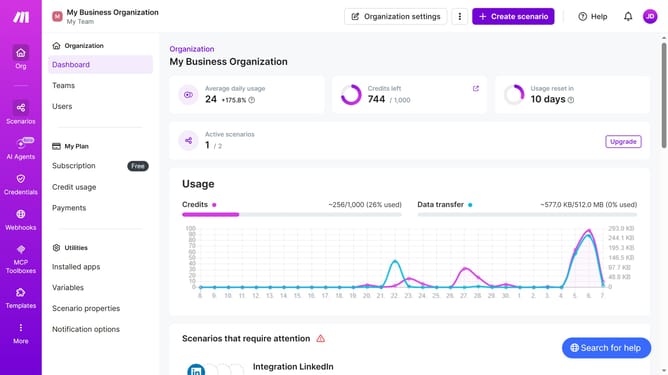
How to set a one-time running schedule for a Pinterest scenario in Make
Here is how to set a one-time running schedule for a pinterest scenario in make
- First click on "Scenarios" in the left sidebar
- Then click on the "Pinterest" scenario
- Next, click on the "Options" button in the top right action bar
- Then select "Scheduling" from the dropdown menu
- After that, click on the "Run scenario" dropdown menu
- Then select "Once" from the scheduling options
- Finally click on the "Save" button
Why should you set a one-time running schedule for a Pinterest scenario in Make
Make is a versatile automation platform that simplifies workflows across various applications.
Setting a one-time running schedule for a Pinterest scenario in Make streamlines your content strategy, ensuring timely posting without manual intervention.
Reducing the need for constant oversight, this feature allows users to focus on creativity and engagement while Make handles the timing. It offers efficiency and precision, crucial for maintaining consistency in dynamic content environments.
Last update