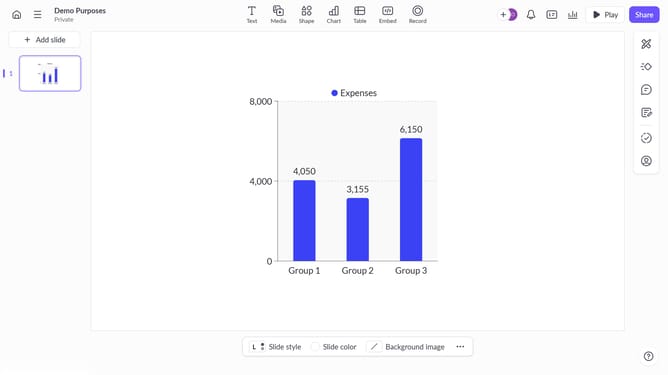
How to remove the shadow from an image on Pitch
Here is how to remove the shadow from an image on pitch
- First, open the presentation you want to edit
- From the left sidebar, select the slide containing the image
- Next, select the image whose shadow you want to remove
- After that, click on "Design" to open the right sidebar
- Then, locate the "Shadow" option in the right sidebar
- Finally, select "None" from the shadow options
Why should you How to remove the shadow from an image on Pitch
Pitch is an innovative platform designed to sharpen your presentation game with ease and elegance.
By removing shadows from images, you can enhance the clarity and focus of visuals in your presentations on Pitch. A clean image ensures your audience's attention is on the content without any distracting elements.
This feature is perfect for achieving a professional, polished look effortlessly, making your presentations more impactful and engaging.
Ultimately, removing shadows leads to a more cohesive and visually appealing presentation, elevating your storytelling.
Last update