How to remove background in Canva
Here is how to remove background in canva
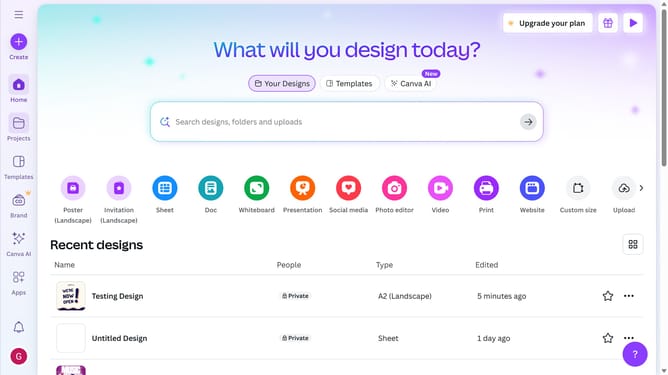
- First click on the "Apps" icon in the left sidebar
- Then click on the input text field tab in the horizontal menu
- Next click on the "Background Eraser" app in the search results
- Then click on the "Use in existing design" button in the app dialog
- Next click on "Your projects" folder in the folder selection dialog
- Then select the "Untitled Design (A2 Landscape)" project
- Next click on the "Remove background" button in the window panel
- Finally click on the "Remove background" button in the left sidebar
Why should you remove background in Canva
Canva is an intuitive design platform that empowers everyone to create stunning graphics effortlessly.
One of its standout features is the ability to remove backgrounds from images in seconds, giving users the freedom to highlight subjects without distractions.
This feature is perfect for enhancing product photos, elevating social media visuals, or simply crafting professional-looking presentations.
With background removal, Canva users can achieve a polished and cohesive look, ensuring their designs always make a striking impression.
Last update