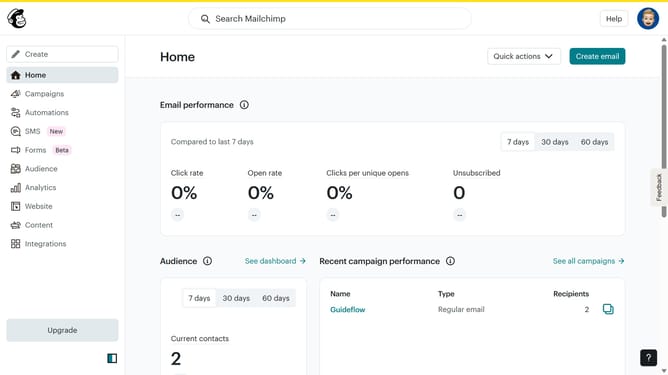
How to remove background image in an email campaign in Mailchimp
Here is how to remove background image in an email campaign in mailchimp
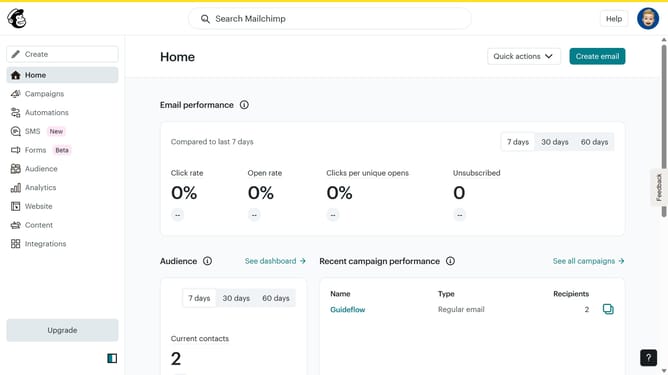
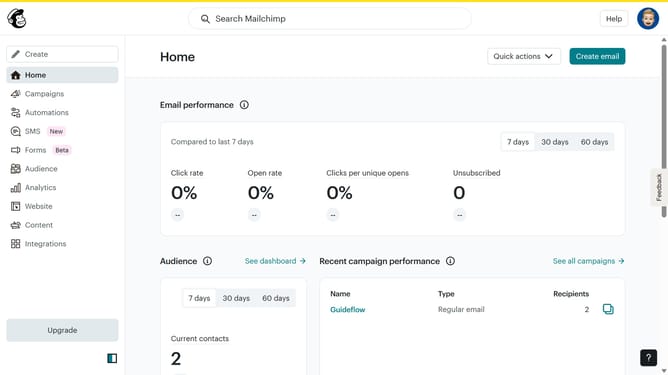
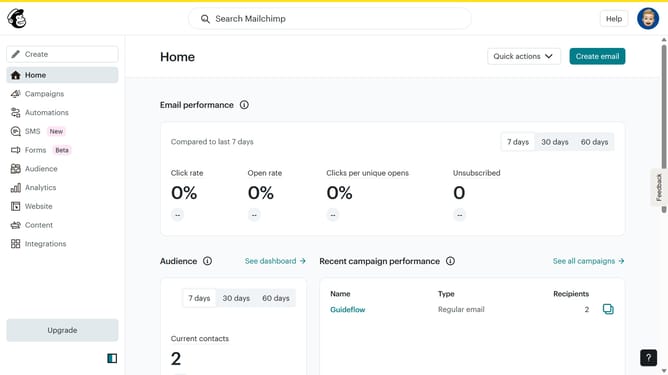
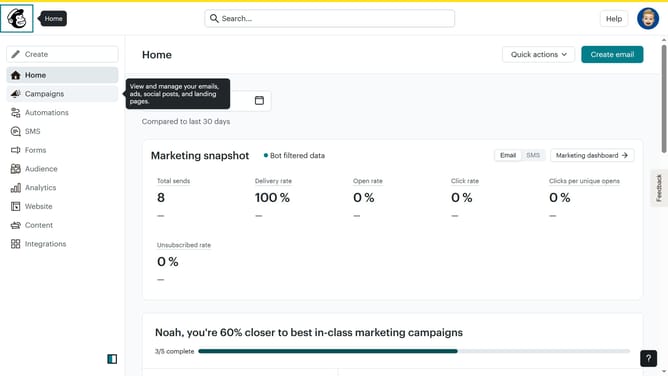
- First click on "Campaigns" in the left sidebar
- Then click on the "Edit" button next to the email campaign that you want to manage
- Next, click on the "Edit design" button at the bottom right of the email preview
- After that, select "Styles" from the left-side menu
- Then, click on "Background" within the Styles menu
- Click on "Remove" to delete the current background image
- Finally, click on the "Save and exit" button
Why should you remove background image in an email campaign in Mailchimp
Mailchimp is a comprehensive platform designed to streamline and enhance your email marketing campaigns.
Removing the background image in an email campaign helps improve readability and allows your brand's message to stand front and center.
Utilizing this feature ensures your core content isn't overshadowed and maintains a cleaner, more professional aesthetic.
This, in turn, guarantees that your audience focuses on your key message, enhancing engagement and effectiveness in communication.
Last update