How to position field labels in a form group in Airtable
Here is how to position field labels in a form group in airtable
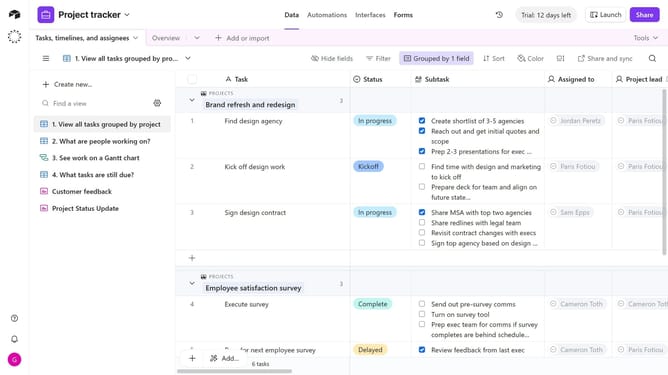
- First navigate to the base that contains your form and click on the "Forms" tab
- In the forms list, select the form that contains the group you want to edit
- In the form editor, click the form group that contains the fields you want to adjust the position
- Next locate the "Field labels" option in the right sidebar under the Appearance section
- Then choose your preferred position, Top or Side
- The form preview will update immediately to reflect your choice. Top places labels above the fields, while Side places them to the left with fields on the right
- Finally click the "Publish" button in the top-right corner to make the changes live, if desired
Why should you position field labels in a form group in Airtable
Airtable is a dynamic platform that blends the best of spreadsheets and databases, empowering users to easily organize and collaborate on structured data.
Positioning field labels within a form group in Airtable enhances form clarity and user experience. By strategically organizing labels, users can swiftly comprehend the data entry points, reducing confusion and minimizing errors.
This feature is invaluable for maintaining clean, intuitive data entry forms, ensuring that all team members and collaborators can input information smoothly and efficiently.
Last update