How to move an automation into a different folder in Manychat
Here is how to move an automation into a different folder in manychat
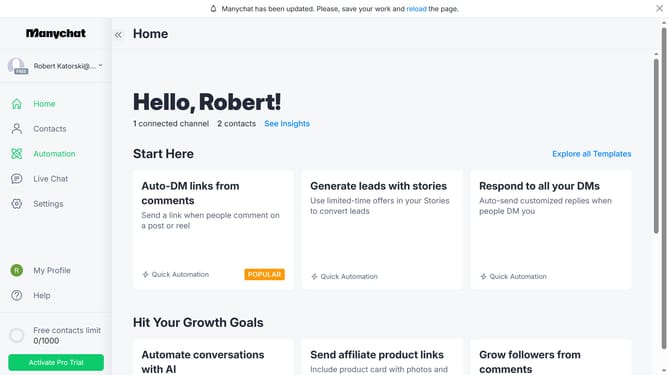
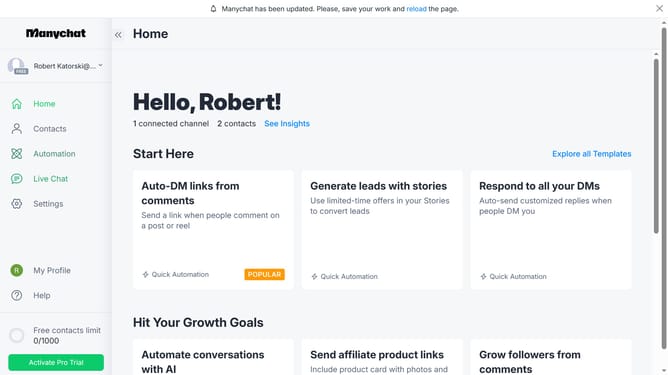
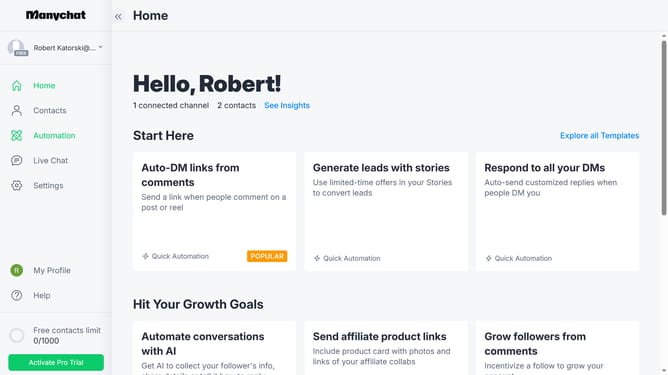
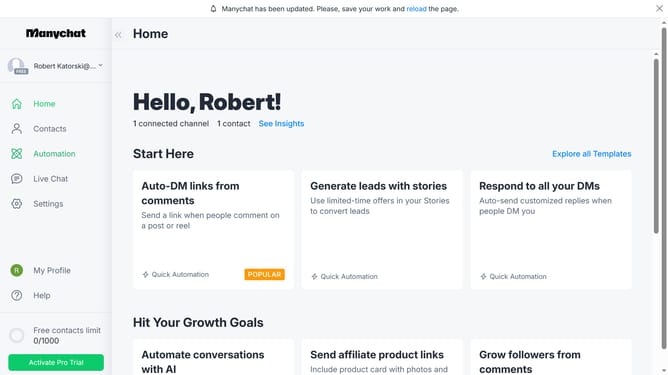
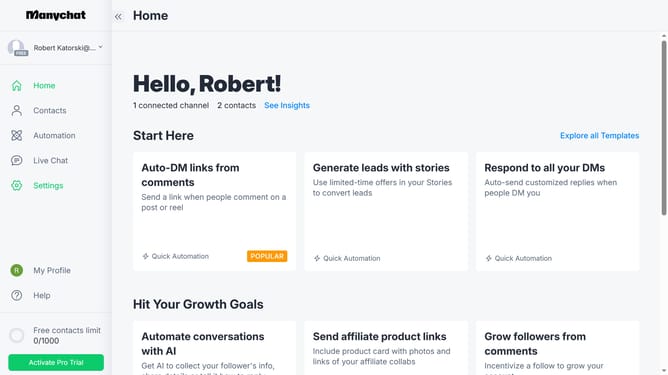
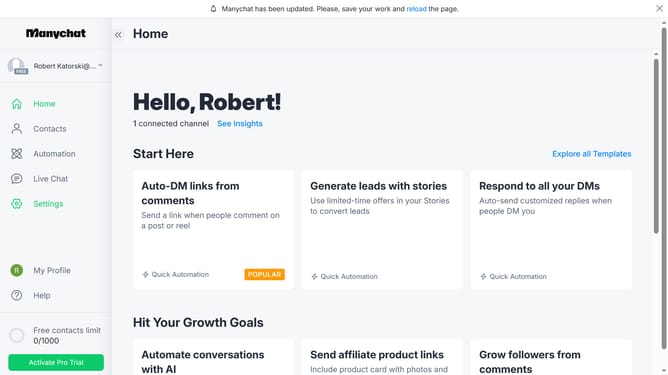
- First click on the "Automation" link in the left sidebar menu
- Hover your mouse over the automation you want to move until you see the three dots menu button
- Click the "More options" button (three dots) next to the Subscribe to Instagram automation
- Select "Move to" option from the dropdown menu
- In the move dialog, select the folder you want to move the automation
- Finally click the "Move" button to complete moving the automation
Why should you move an automation into a different folder in Manychat
Manychat is a powerful platform to enhance customer communication through automated messaging.
Moving an automation into a different folder in Manychat is a smart feature that streamlines organization and boosts efficiency. By reallocating an automation, you can categorize your workflows into thematic or project-specific folders, making management intuitive and seamless.
This feature helps maintain a tidy and focused workspace, especially beneficial as your business scales, ensuring each automation is easily accessible and logically grouped, ultimately enhancing usability.
Last update