How to add audio content block in Manychat
Here is how to add audio content block in manychat
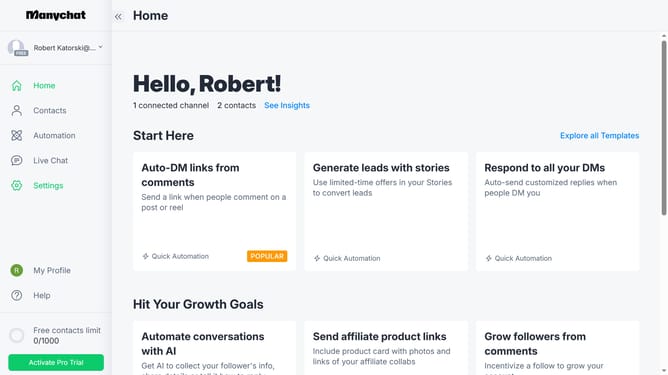
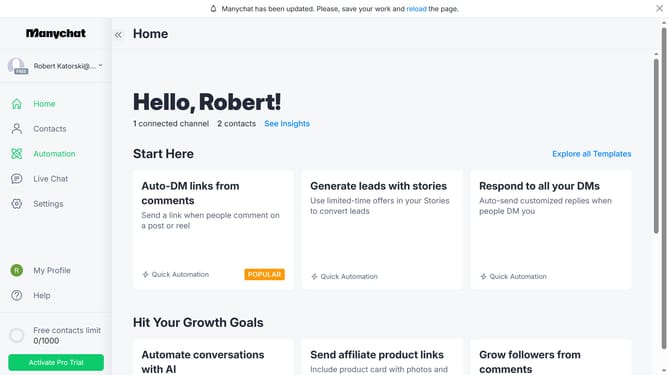
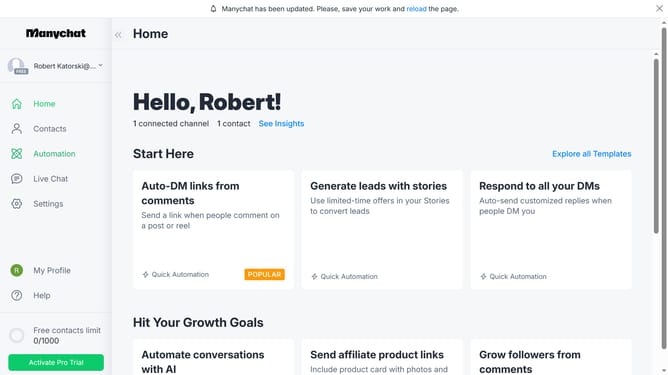
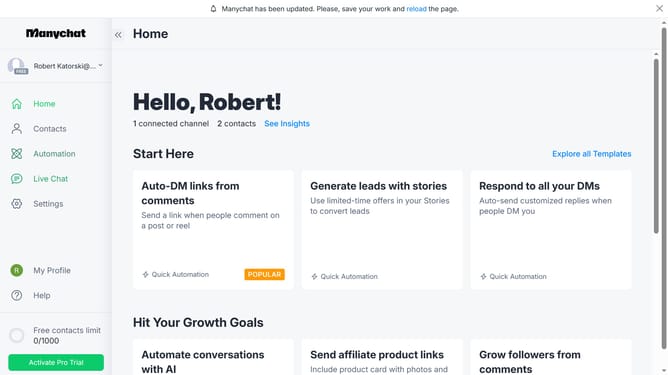
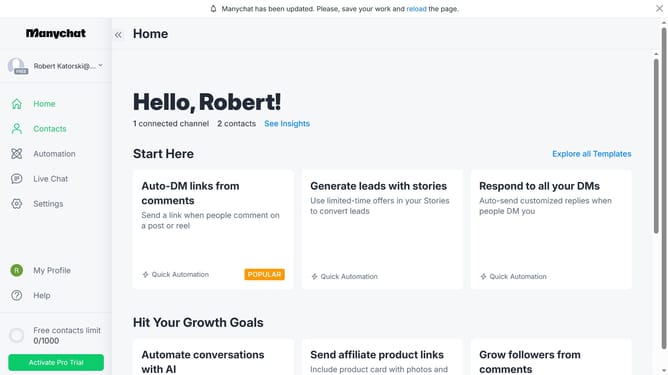
- First click on the "Automation" option in the left sidebar menu
- Then click on an automation from the automations list
- Next click on the content block in the automation builder
- Then scroll down in the automation details panel
- Next click on the "More" button at the bottom of the content blocks menu to view additional options
- Finally click "Audio" from the menu popup to add the audio content block
Why should you add audio content block in Manychat
Manychat is a powerful tool for automating and enhancing customer interactions through messaging platforms.
Among its versatile features, the ability to add audio content blocks stands out, offering a dynamic way to engage your audience.
Incorporating audio can create a more engaging and memorable experience, conveying emotions and personality beyond text.
Utilizing audio blocks in Manychat enhances content delivery, fosters richer communication, and elevates user engagement, making your messaging strategy more impactful.
Last update