How to manage weekly running schedule for a Slack scenario in Make
Here is how to manage weekly running schedule for a slack scenario in make
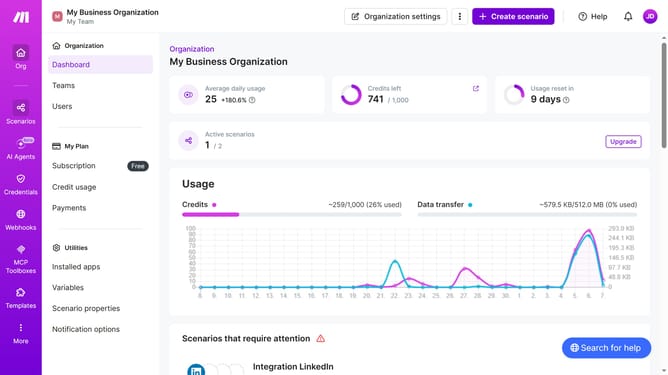
- First click on "Scenarios" item in the left sidebar
- Then click on the "Integration Slack" scenario name
- Next, click on the "Options" button in the header
- Then select "Scheduling" from the dropdown menu
- After that, click on the "Run scenario" dropdown menu
- Then select "Weekly" from the list of options
- Next, click on the "Days" dropdown menu
- Then select a day checklist from the list of days
- Finally click on the "Save" button
Why should you manage weekly running schedule for a Slack scenario in Make
Make is a powerful automation platform that connects apps to streamline workflows seamlessly.
With Make, managing your weekly running schedule for a Slack scenario becomes intuitive and efficient. It provides the ability to automate notifications and updates effortlessly, ensuring you're always in sync with your team without manual intervention.
By utilizing Make, you can enhance productivity by saving time and reducing the risk of overlooking essential tasks. This automation fosters a more organized communication flow, allowing you to focus on what truly matters.
Last update