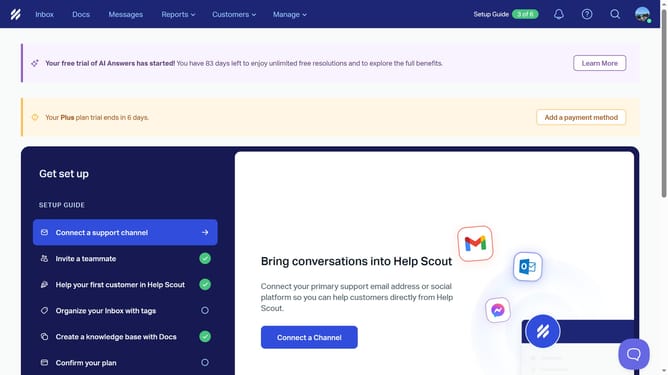
How to make a dropdown custom field in Help Scout
Here is how to make a dropdown custom field in help scout
- First click on the "Manage" dropdown in the header
- Then click on the "Inbox" item in the dropdown menu
- Next click on the "Guideflow" inbox in the list
- Then click on "Custom Fields" in the left sidebar.
- Next click on the "New Custom Field" button
- Then click on the "Name" input field and enter the field name
- Next click on the "Type" dropdown
- Then select the "Dropdown" option from the type selection
- Next click on the "Option 1" input field and enter a dropdown option
- Finally click on the "Save" button
Why should you make a dropdown custom field in Help Scout
Help Scout is an intuitive help desk platform designed to enhance customer support experiences effortlessly.
Creating a dropdown custom field in Help Scout is a seamless way to organize ticket data efficiently.
This feature allows you to categorize queries systematically, making it easier for support teams to prioritize and tackle issues effectively.
Utilizing dropdown custom fields not only streamlines workflows but also ensures a more personalized and swift response for each customer, boosting overall satisfaction.
Last update