How to add a strikethrough text in a reply in HelpScout
Here is how to add a strikethrough text in a reply in helpscout
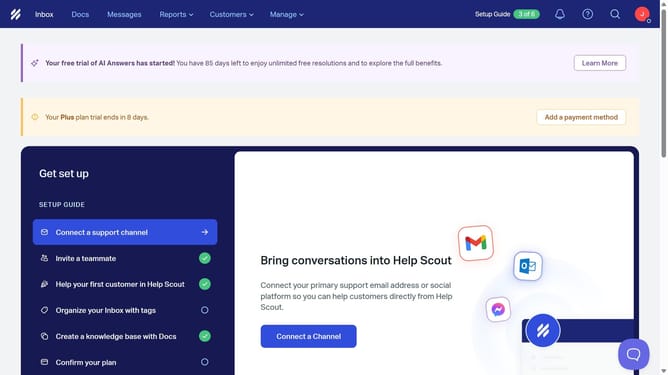
- First click on "Inbox" in the top navigation menu
- Then click on a conversation in the Unassigned list
- Next click on "Reply" button to open the reply composer
- Then click on "More styles" button in the formatting toolbar
- Next select "Strikethrough" option from the text formatting menu
- Finally click in the message text area to start composing your reply
Why should you add a strikethrough text in a reply in HelpScout
Help Scout transforms customer service by streamlining communication and providing intuitive tools for managing conversations.
Among its many features, adding a strikethrough text in a reply can be particularly beneficial for clarity and context in communications. This allows users to visibly indicate changes, corrections, or deprecated information, enhancing transparency.
Using strikethrough helps in maintaining a clear historical context in conversations, ensuring that clients or team members are kept informed of all updates seamlessly.
Last update