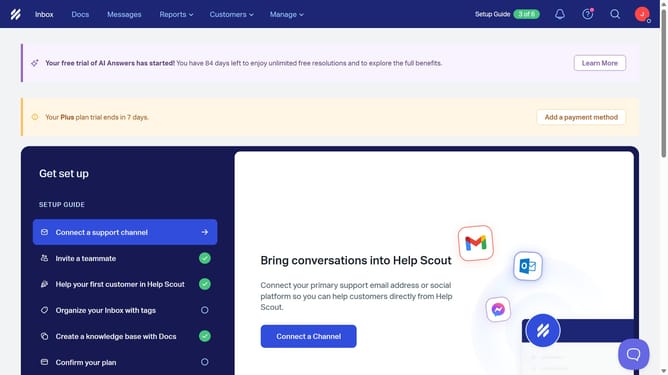
How to create a microsurvey message in HelpScout
Here is how to create a microsurvey message in helpscout
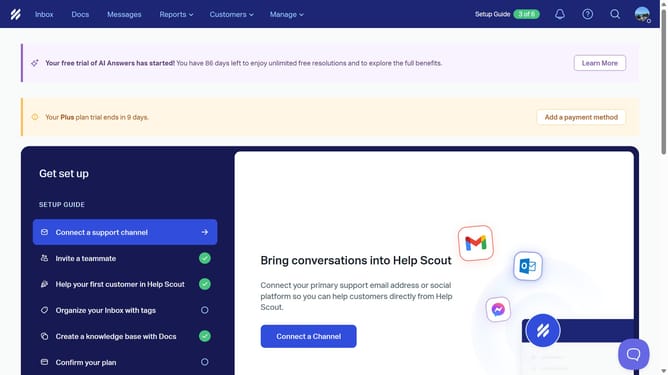
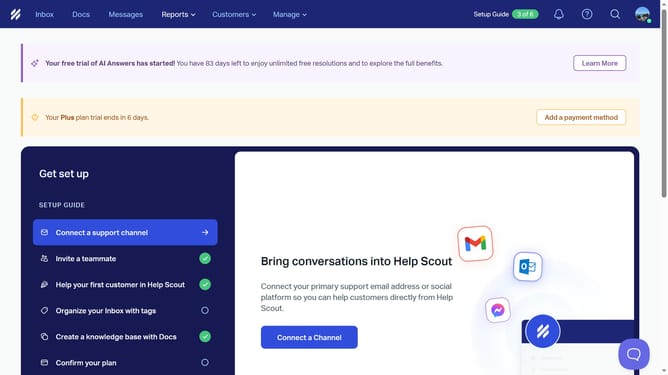
- First click on "Messages" link in the top navigation menu
- Then click on "Create Message" button
- Then click on "Microsurvey" display type option
- Then click on the "Name" text input field and enter the message name
- Then click on "Create" button
- Then click on the "Heading" text input field and enter your survey heading
- Then click on the "Subtitle" text input field and enter the survey subtitle
- Then click on the "Body" text area field
- Finally, click on " Save"
Why should you create a microsurvey message in HelpScout
Help Scout is a customer support platform designed to enhance communication and streamline interactions with your audience.
Creating a microsurvey message in Help Scout allows businesses to easily gather customer feedback through compact, efficient surveys. These surveys are perfect for gaining quick insights into customer satisfaction and service improvement areas.
By implementing microsurveys, businesses can quickly adapt to customer needs, fostering a more responsive and customer-centric approach. This leads to increased customer loyalty and enhanced service quality.
Last update