How to link a page in a dropdown in Webflow
Here is how to link a page in a dropdown in webflow
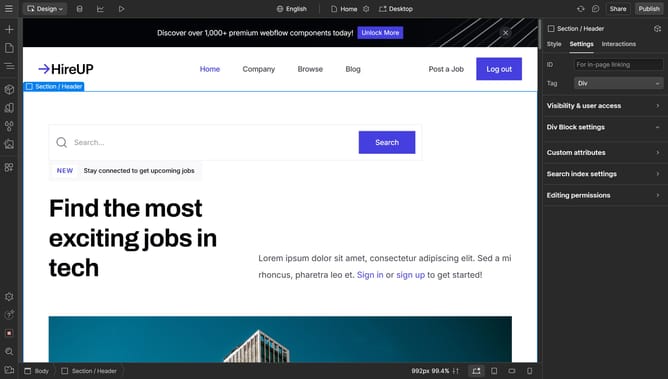
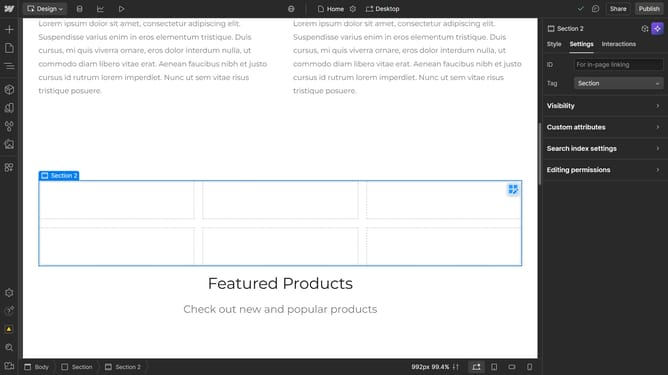
- First click on the "Dropdown" element in the main content area
- Then click on "Dropdown settings" option in the right sidebar
- Next click on "Show" option under Menu settings in the dropdown settings panel
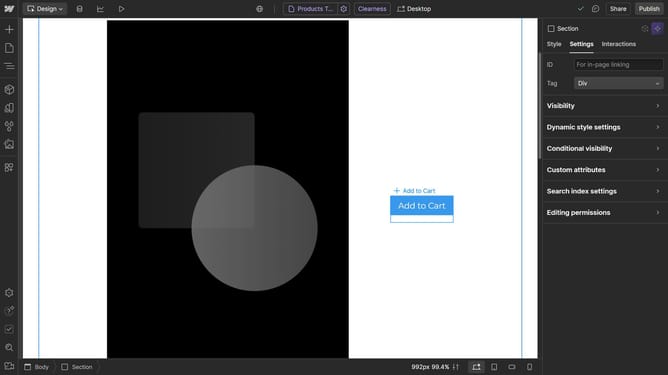
- Click on "Dropdown Link" element in the dropdown menu
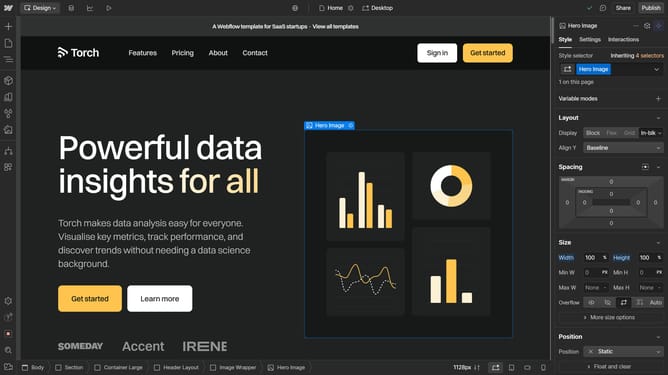
- Click on the "Page" icon in the Link settings section
- Click on "Choose a page..." dropdown in the Link settings
- Select an option from the page selection dropdown
- Finally check the "Open in new tab" checkbox in the Link settings
Why should you link a page in a dropdown in Webflow
Webflow is a powerful tool designed to enable designers to create professional websites without writing code.
Linking a page in a dropdown in Webflow adds seamless navigational elements to your website, enhancing user experience and site structure.
This feature simplifies the process of integrating multiple pages within a concise space, allowing users to explore your content easily and effectively.
By visually organizing your content, it contributes to a neat, professional appearance while maintaining intuitive website navigation.
Last update