How to insert an apps block in an email in Mailchimp
Here is how to insert an apps block in an email in mailchimp
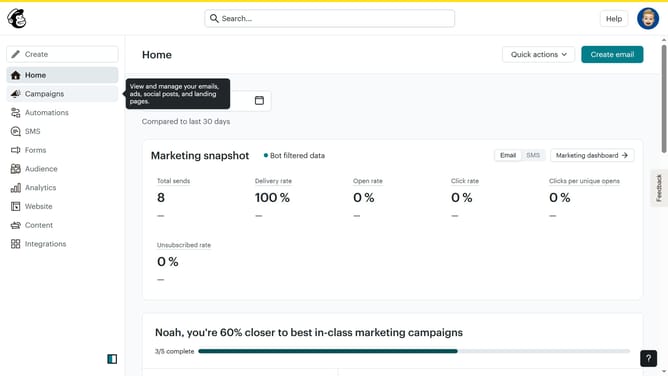
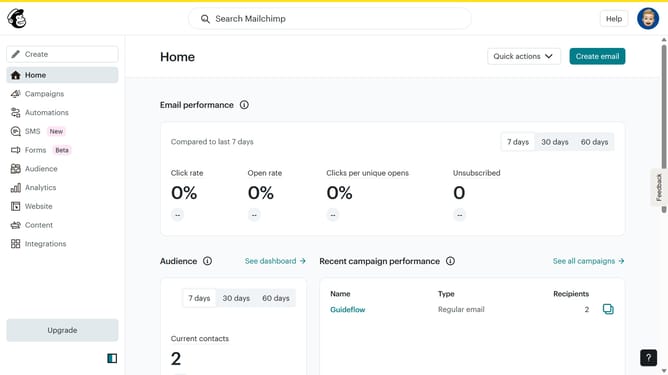
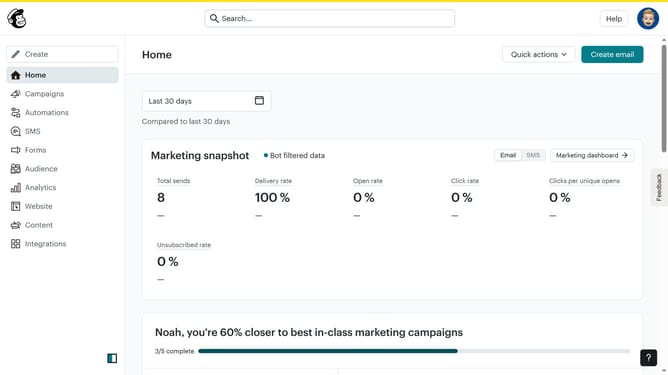
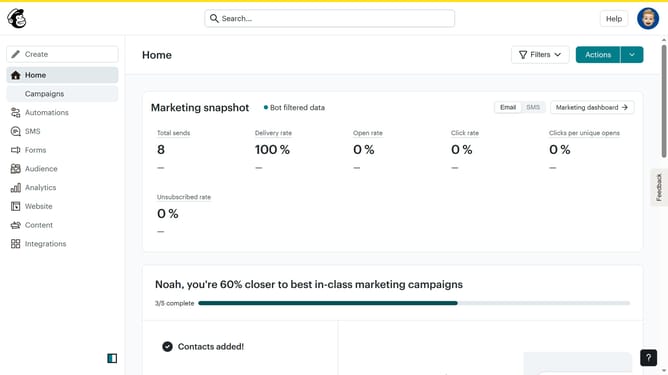
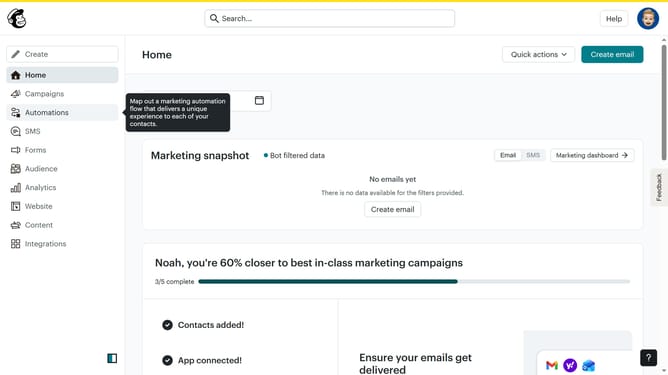
- First click on the "Campaigns" menu item in the left sidebar
- Then click on the "Edit" button next to the Testing Email campaign
- Next click on the "Edit design" button in the email preview panel
- Next click on the "Apps" block from the left sidebar blocks menu
- Then click on the "Link Preview" option in the Connected apps section
- Finally click in the URL input field labeled "Source" to enter your URL
Why should you insert an apps block in an email in Mailchimp
Mailchimp is a powerful email marketing platform designed to help businesses effectively communicate with their audience.
The apps block feature in Mailchimp allows users to enhance their emails by integrating various apps directly into the content, offering subscribers a more interactive experience.
Using an apps block can make emails more engaging by incorporating features such as surveys, social media feeds, or appointment scheduling tools.
This not only enriches the user experience but also encourages higher engagement rates, providing businesses with valuable insights and stronger customer connections.
Last update