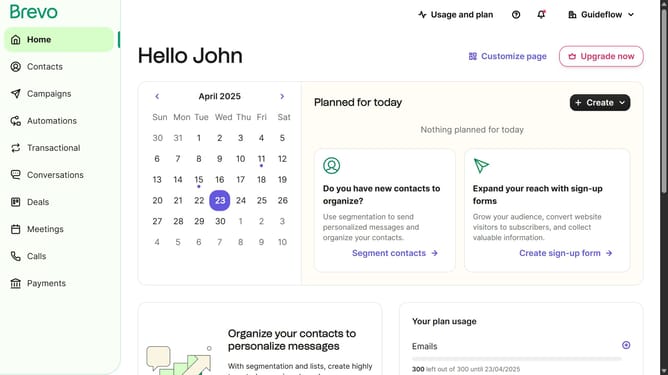
How to input an image block on a campaign in Brevo
Here is how to input an image block on a campaign in brevo
- First click on "Campaigns" in the left sidebar menu
- Then click on the "Market Email" draft campaign from the list
- Next click on the "Edit design" button in the campaign editor
- In the left sidebar, click on the "Image" block under the Blocks section
- Click on the empty image placeholder area in the main content area
- In the Image settings panel that appears on the left, locate and click the "Replace" button
- Click the "Replace" button in the center of the image upload area
- Click on "Create image" button in the Content library window
- Finally, click the "Insert" button in the top toolbar of the Content library window
Why should you input an image block on a campaign in Brevo
Brevo serves as a dynamic platform for streamlining your email marketing campaigns effortlessly.
One of its standout features is the ability to input an image block directly into your campaign. This feature allows for the seamless integration of visuals, enhancing the overall aesthetic appeal and engagement factor of your emails.
Images can convey messages quickly and effectively, making them an essential component of compelling communication.
By incorporating image blocks, your campaigns not only capture attention but also deliver your message with more impact, leading to stronger connections with your audience.
Last update