How to import contacts in Brevo
Here is how to import contacts in brevo
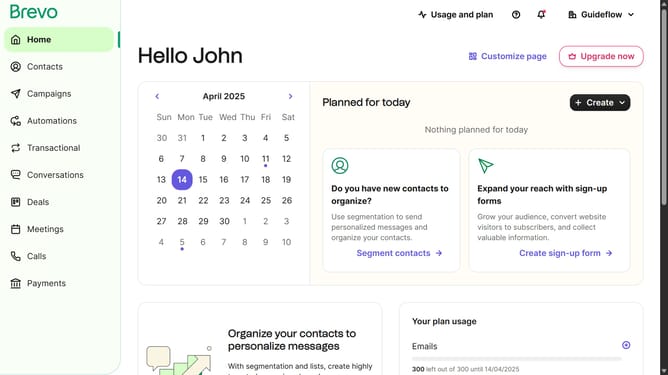
- In the left sidebar, click on the "Contacts" menu item
- In the top right corner, click the "Import contacts" button
- In the import dialog, click on the "Contacts" card option
- Click the "Continue" button to proceed with contact import
- Click the "Import from a file" option
- Click on the file upload area to select your contacts file
- After uploading the file, click the "Confirm your file" button
- Click on the dropdown menu in the "CONTACT ATTRIBUTE" column
- From the dropdown menu, select "CONTACT ID - Number" option
- Click the "Confirm mapping" button at the bottom of the mapping screen
- Click on the checkbox next to the "Contacts" list in the Example folder
- Next click the "Confirm your list" button to confirm the list to put your contacts
- Click the checkbox to confirm agreement with the import conditions
- Finally, click the "Confirm your import" button to complete the process
Why should you import contacts in Brevo
Brevo is an intuitive platform designed to streamline customer relationship management through effortless communication.
The feature of importing contacts in Brevo is brilliantly straightforward, enabling users to seamlessly transfer their extensive contact lists into the platform. This process not only saves valuable time but also promotes efficiency by ensuring your data is centrally consolidated.
By importing your contacts, you enhance your ability to engage directly with your audience, resulting in targeted marketing efforts and enriched customer interactions.
Last update