How to hide the users column in permission profiles in DocuSign
Here is how to hide the users column in permission profiles in docusign
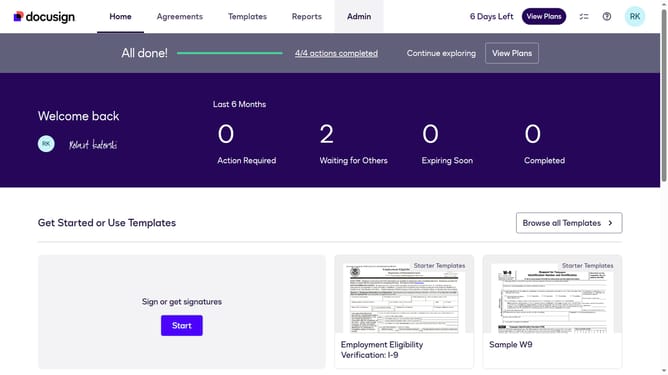
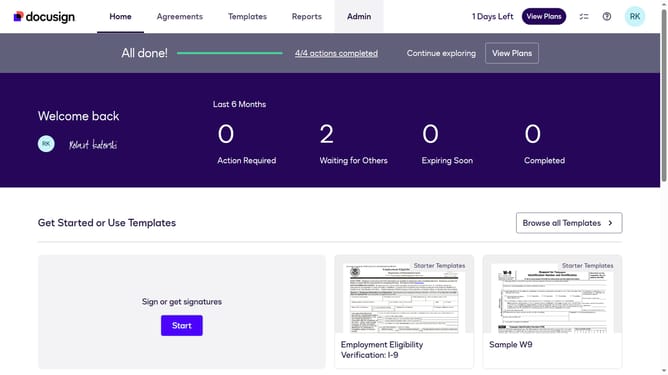
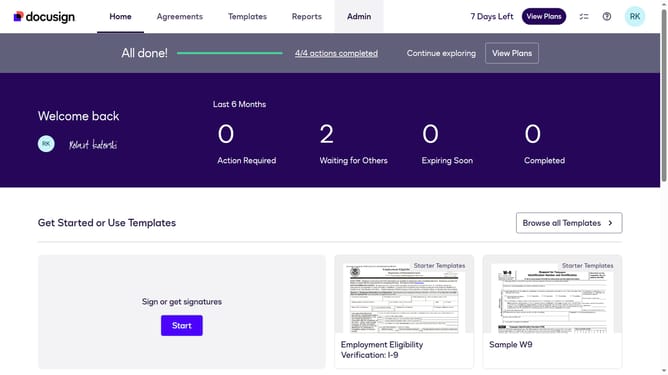
- First click on the "Admin" link in the top navigation menu 2 .Then scroll down to view more options
- Next click on "Permission Profiles" in the left sidebar under the "USERS AND GROUPS" section
- Then click on the column settings icon (gear icon) in the upper right area of the Permission Profiles table
- Next uncheck the "Users" checkbox in the Permission Profile Column Setting dialog
- Finally click on the "Apply" button to save the column settings changes
Why should you hide the users column in permission profiles in DocuSign
DocuSign is a leading electronic signature platform that streamlines document management securely and efficiently.
In DocuSign, the ability to hide the users column in permission profiles enhances user experience by allowing administrators to customize the visibility of sensitive information.
This feature is particularly beneficial for organizations aiming to maintain confidentiality and reduce visual clutter, ensuring a cleaner, more focused interface.
Ultimately, it helps streamline permission management and reinforces privacy, supporting a more organized workflow.
Last update