

How to freeze first column of a table document in Slite
Here is how to freeze first column of a table document in slite
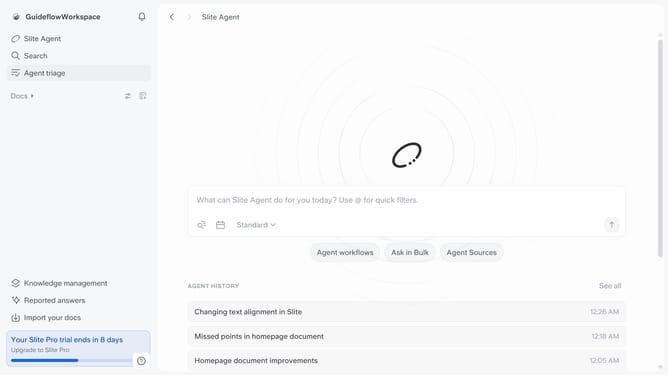
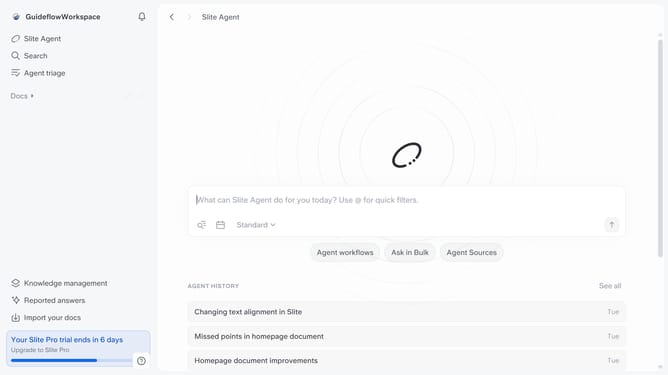
- First click on "Docs" item in the left sidebar
- Then open the Slite document you want to edit
- Then click on the four squares icon at the upper side of the table
- Finally click the toggle ON "Freeze first column" option
Why should you How to freeze first column of a table document in Slite
Slite is a collaborative documentation platform designed to help teams share knowledge seamlessly.
One handy feature in Slite is the ability to freeze the first column of a table document. This feature allows you to keep important reference information visible while you scroll through the rest of your document, enhancing navigability and focus. By freezing the first column, you ensure that critical row headers or categories remain in view, which can be a game-changer for productivity during collaborative work sessions.
Using this feature in Slite promotes efficiency and clarity. It keeps your workflow organized, helping team members easily cross-reference data without losing track of context. This simple yet effective enhancement can streamline your documentation process and significantly improve the ease of collaboration and data analysis for your team.