How to filter audit logs by organization AI settings changed in Mixpanel
Here is how to filter audit logs by organization ai settings changed in mixpanel
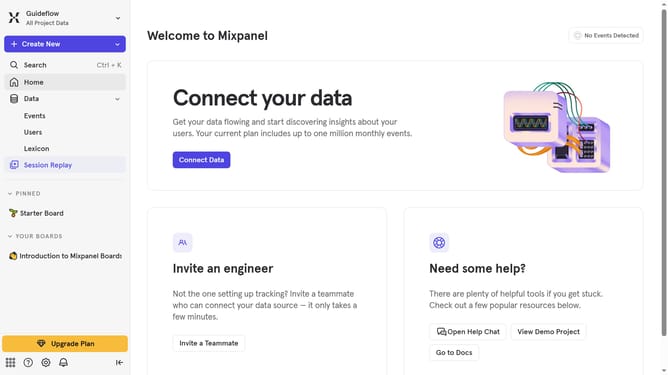
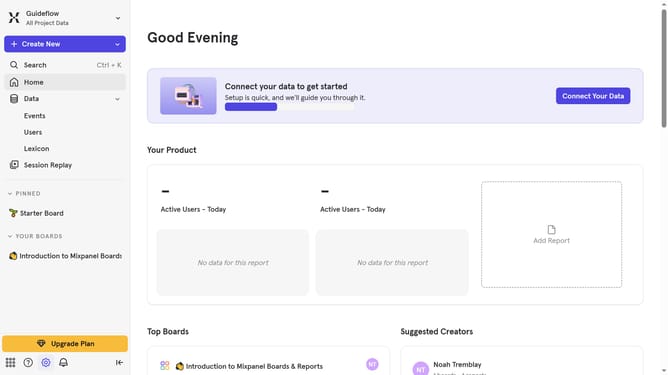
- First click on the gear icon in the bottom left sidebar
- Then hover your mouse cursor over the the "Settings" menu item
- Next, click on "Organization Settings"
- Then click on "Audit Log" in the left-hand navigation menu
- After that, click on the "Action" dropdown menu
- Then scroll down to view more option
- Finally click on the checkbox next to "Organization AI Settings Change"
Why should you filter audit logs by organization AI settings changed in Mixpanel
Mixpanel is a powerful analytics platform designed to help businesses understand their user interactions in real-time.
One of the standout features is the ability to filter audit logs by organization AI settings. This allows users to efficiently track changes and modifications made to AI configurations within their organization.
By utilizing this feature, teams can ensure better governance and accountability, as every adjustment in AI settings is documented and traceable. This provides peace of mind and enhances compliance by offering a transparent record of alterations within the AI environment.
Last update