How to filter audit logs by profiles batch updated in Mixpanel
Here is how to filter audit logs by profiles batch updated in mixpanel
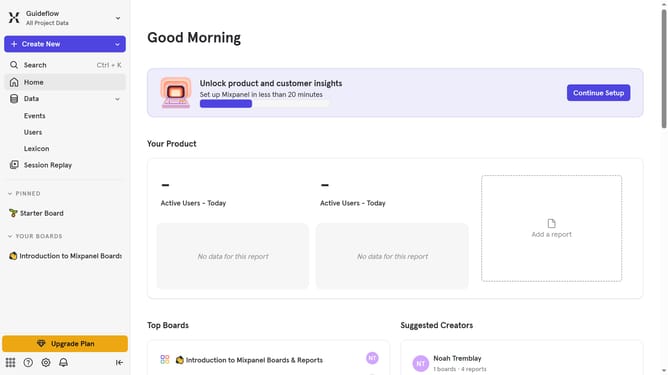
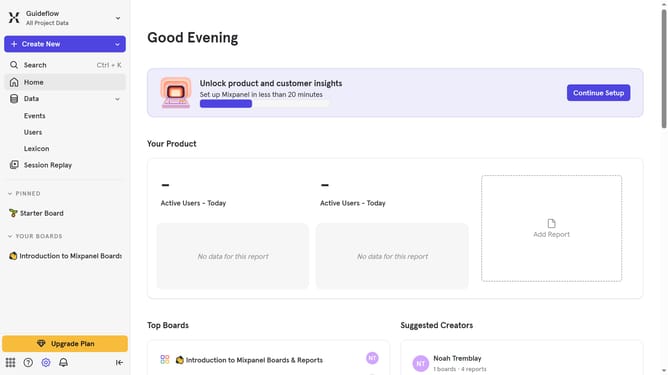
- First click on the settings icon in the bottom left sidebar
- Then hover your mouse cursor over the "Settings" option
- Next, select "Organization Settings" from the expanded menu
- In the left sidebar, click on "Audit Log"
- In the top menu bar, click on the "Action" dropdown
- Then, scroll down in the dropdown menu
- Finally, select the checkbox next to "Profiles Batch Updated"
Why should you filter audit logs by profiles batch updated in Mixpanel
Mixpanel is a powerful analytics platform designed to help businesses understand user behavior to make data-driven decisions.
One of Mixpanel's standout features is the ability to filter audit logs by profiles that have been batch updated. This function allows users to easily monitor and identify multiple profile changes in one go, enhancing transparency and efficiency.
By using this feature, teams can ensure that all profile updates align with business objectives and maintain a clear record for accountability, ultimately streamlining data management processes. This not only saves time but also enhances accuracy in profile tracking, leading to more informed decision-making.
Last update