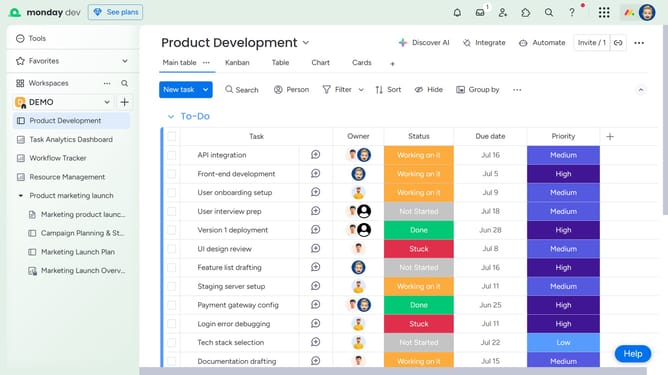
How to filter a widget in Monday.com
Here is how to filter a widget in monday.com
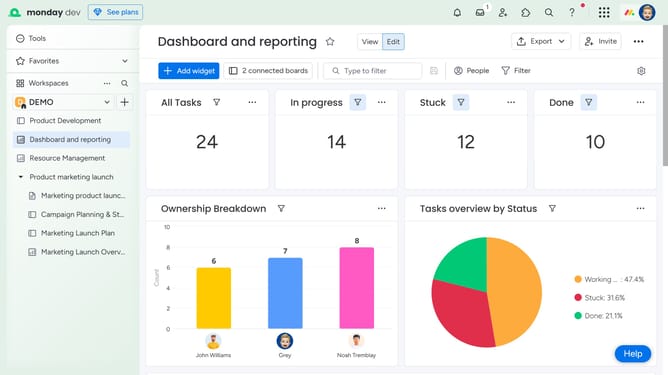
- First locate the widget you want to filter on the dashboard
- Next click on the "More actions" button (three dots) in the widget header
- Click on "Settings" option from the dropdown menu
- Then click on the "Filter" button in the widget toolbar
- In the filter panel, click on the "Board" dropdown menu
- Then select the board you want to filter by from the list
- Finally, add a filter by choosing a column, setting the condition, and then specify the value
- To add more filtering conditions, click “New filter” if needed
Why should you filter a widget in Monday.com
Monday.com is a versatile work operating system designed to streamline team collaboration and project management.
The ability to filter a widget in Monday.com is a powerful feature that allows users to customize their view and focus on what's most important. This functionality enhances efficiency by allowing team members to sift through data and visualize it in a way that best suits their workflow.
Using filters helps to reduce information overload and ensures that key insights are never missed, ultimately driving more informed decision-making and improving productivity throughout the team.
Last update