How to lock a view to prevent changes in Monday.com
Here is how to lock a view to prevent changes in monday.com
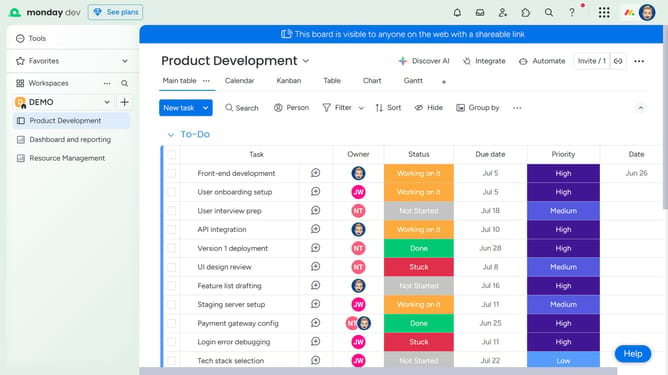
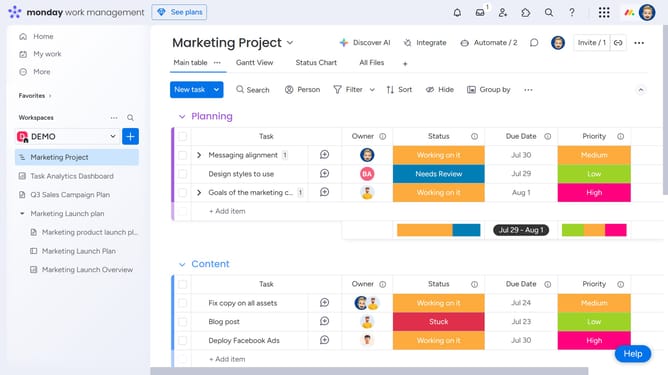
- First navigate to the board and click on the view tab you want to lock
- Next click the more options menu (three dots) on the right side of the view tab
- Then select "Lock view to restrict edits" option from the dropdown menu
- Finally click the "Lock view" button in the confirmation dialog
- The view will now be locked, preventing other users from changing its structure or filters
Why should you lock a view to prevent changes in Monday.com
Monday.com is a dynamic work operating system designed to streamline team collaboration and project management.
Locking a view in Monday.com is a powerful feature to ensure your data remains consistently structured and secure. This function is valuable for maintaining data integrity by preventing accidental changes to key project views.
Moreover, it enhances team collaboration by providing a dependable reference point that teams can trust, ensuring everyone stays aligned on the latest information. By preserving vital configurations, you’re able to maintain focus on productivity and accuracy.
Last update