Mural
Mural is a visual collaboration platform for brainstorming, planning, and running remote workshops on a shared canvas.
Website
Industry
Design
Share this article:

How to enable tiled area only for voting in Mural

Here is how to enable tiled area only for voting in mural

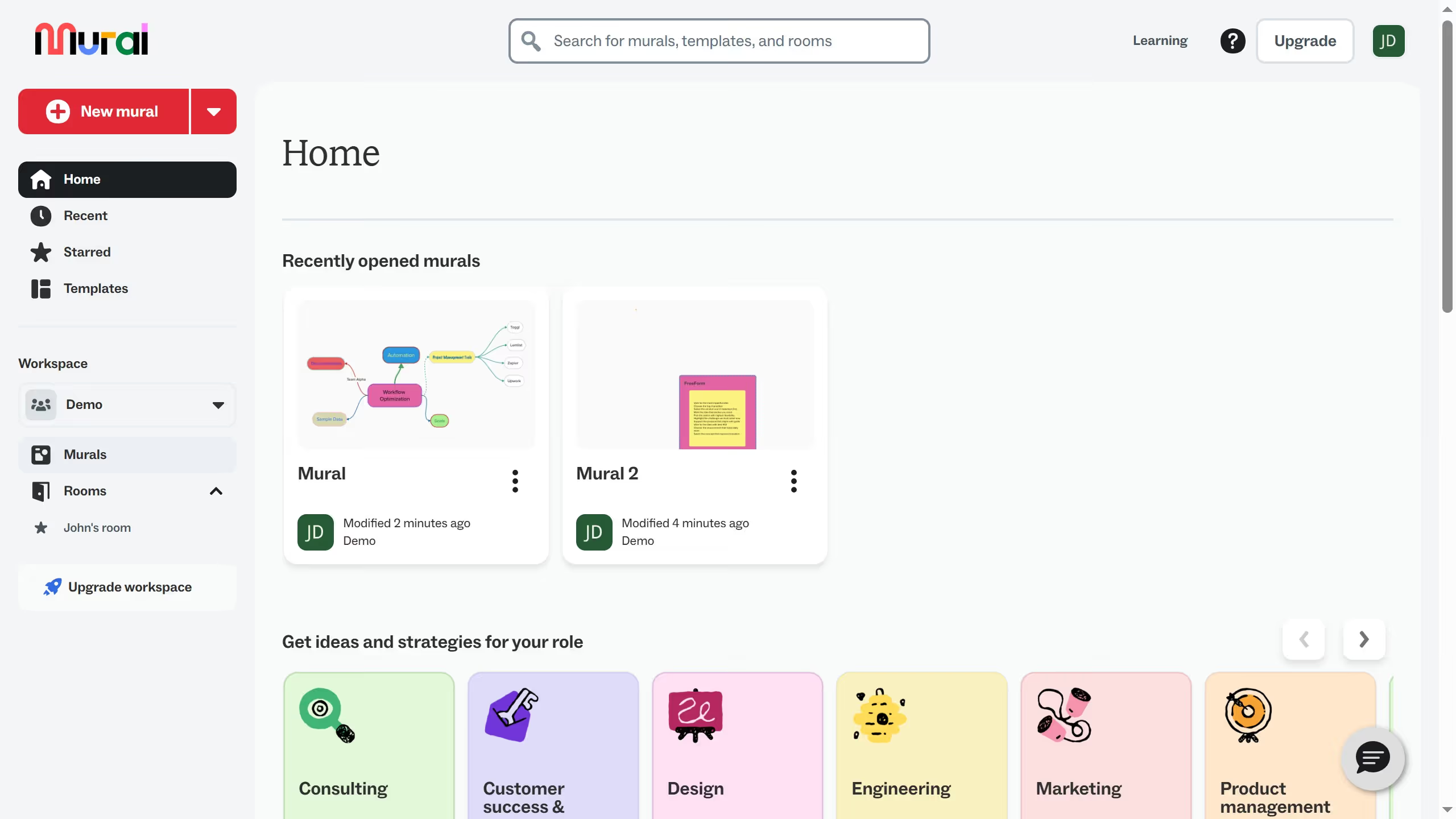
  1. First click on the "Murals" item in the sidebar
  2. Then click on the mural that you want to manage to open it
  3. Next click on the "Facilitate" button in the top toolbar
  4. Then click on the "Voting" option in the facilitate menu
  5. Next click on the "Start voting session" button
  6. Then click on the "Name of session" input field and enter text
  7. Next click on the "Clear selection" link to deselect all vote options
  8. Then click on the "Titled Areas" checkbox to select it as a vote option
  9. Next click on the "Start" button to start the voting session
  10. Finally click on the "Begin voting" button in the voting session dialog

Create your own interactive guide with Guideflow

Why should you enable tiled area only for voting in Mural

Mural is a dynamic digital workspace designed to enhance team collaboration and creativity.

By enabling the tiled area only for voting in Mural, participants can concentrate on specific sections, directing focus to gather valuable, concentrated feedback efficiently.

This feature boosts decision-making by ensuring teams spend time discussing and voting on the most relevant content, minimizing distractions.

Ultimately, it enriches the collaborative experience, making meetings more productive and outcomes more aligned.

Last update
March 13, 2026
Cursor MariaA cursor points to a button labeled "James."

Create your first demo in less than 30 seconds.