How to edit custom fields in Zendesk Sell
Here is how to edit custom fields in zendesk sell
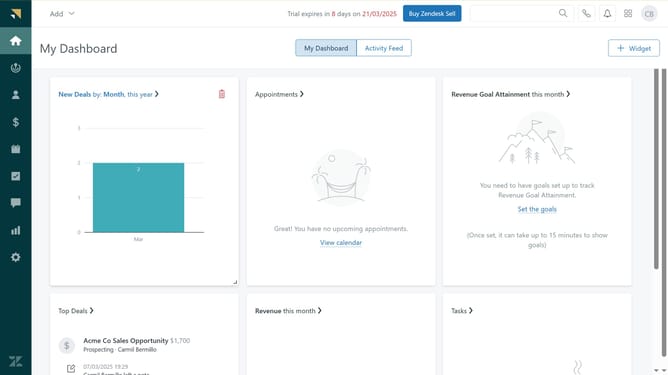
- First in Zendesk sell, click on the "Settings" icon in the left sidebar menu
- Then, under "Customize", click Leads, Contacts or Prospects or Customers, or Deals containing the custom field to edit
- Locate the "Custom fields" section
- In your list of custom fields, click "Edit" for the fields you want to change
- Then start making the necessary changes to your custom fields
- Finally once done, click on the "Save" button to apply the changes
Why should you edit custom fields in Zendesk Sell
Zendesk is a powerful platform designed to enhance customer relationship management through seamless communication solutions.
Editing custom fields in Zendesk Sell empowers sales teams to tailor data capture to their unique needs and processes. This feature allows users to modify field attributes, ensuring that all necessary data points are logically organized and easily accessible.
By customizing these fields, businesses can accurately align sales data with specific objectives, leading to more precise analytics and insights. Ultimately, this leads to better decision-making and improved sales strategies.
Last update