How to do a voiceover on Canva?
Here is how to do a voiceover on canva
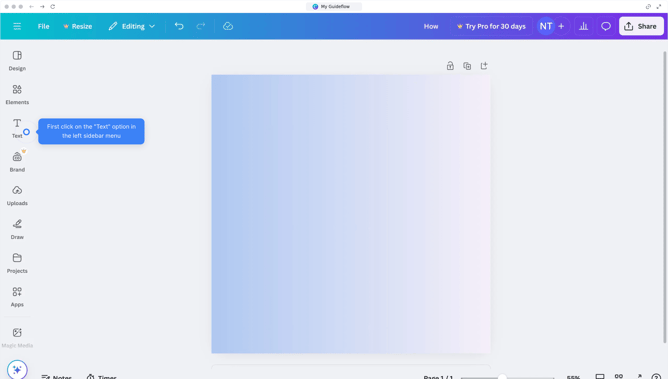
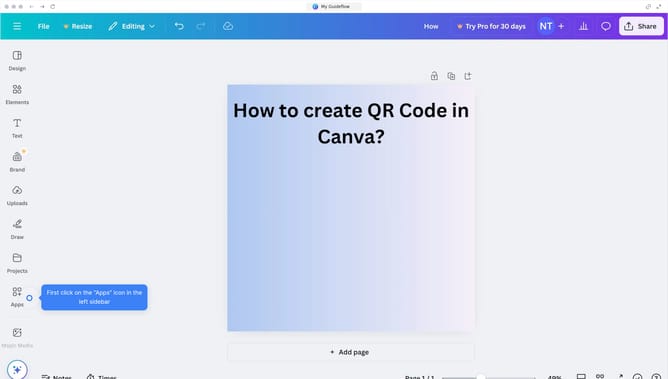
- First click on the "Apps" item in the left sidebar
- Then click on the search field and type "Voiceover"
- From the search results, click on the "Voiceover" option
- Select the second "Voiceover" app icon from the search results
- In the voiceover panel, click on the script text area to enter your text
- Click on the "Speaker" dropdown menu to select your preferred voice
- Click on the "Style" dropdown to choose your preferred speaking style
- Click the "Generate audio" button to create your voiceover
- Finally, locate the generated audio clip at the bottom of the presentation slide
Why should you do a voiceover on Canva?
Canva: An intuitive design platform enabling creativity for everyone.
Using Canva to add a voiceover givs you an edge in crafting engaging multimedia content that speaks directly to audiences. With its easy-to-use interface, integrating voice with visuals is a streamlined process, ensuring that your message resonates louder and clearer. This feature enhances storytelling by making presentations more dynamic and personal, thereby boosting engagement and retention.
Perfect for educators, marketers, and creatives, voiceovers on Canva help convey emotion and personality, enriching user experience while saving time and effort through the platform’s seamless design tools.
Last update