Mural
Mural is a visual collaboration platform for brainstorming, planning, and running remote workshops on a shared canvas.
Website
Industry
Design
Share this article:

How to delete an area after logging to Mural

Here is how to delete an area after logging to mural

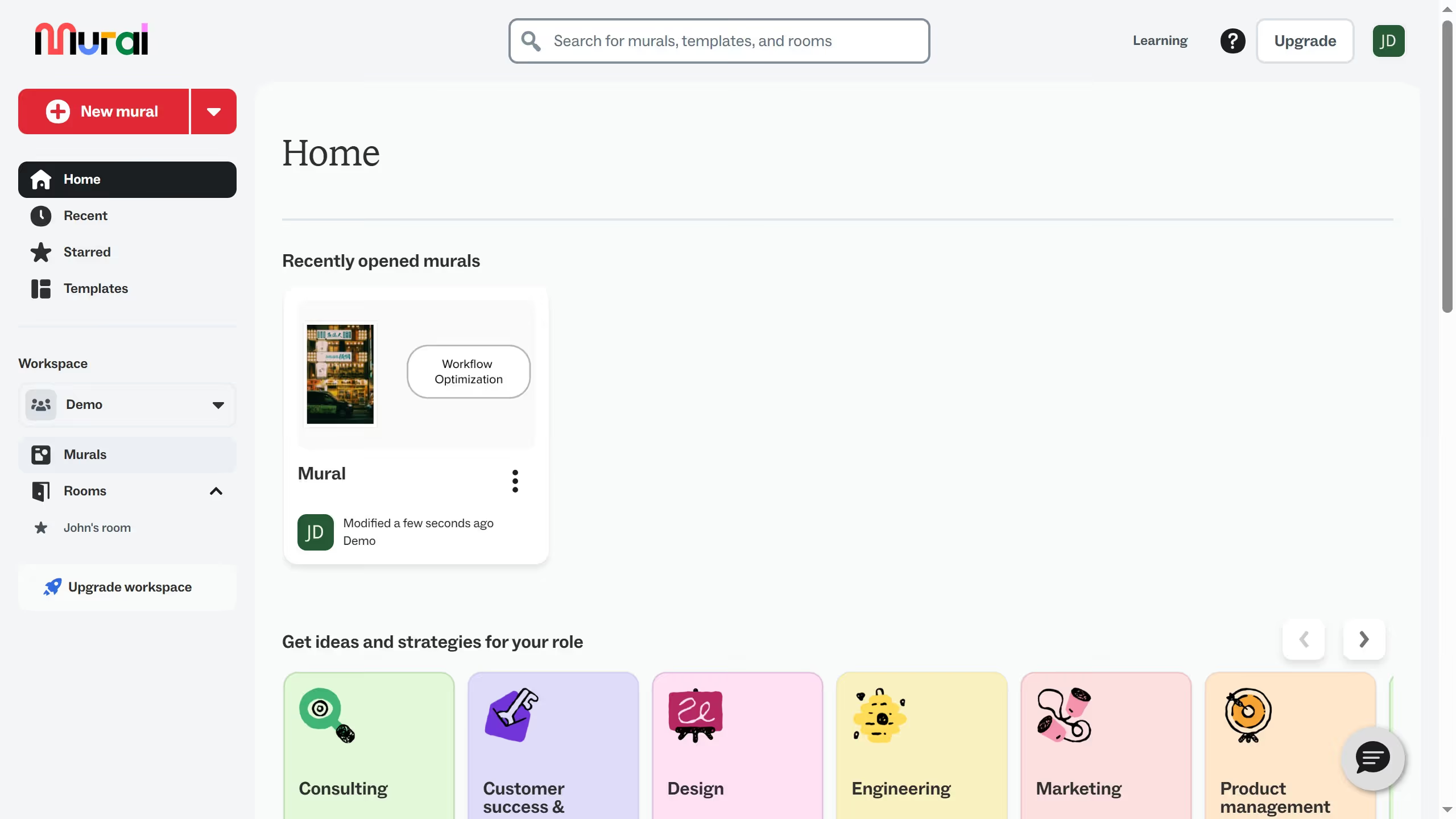
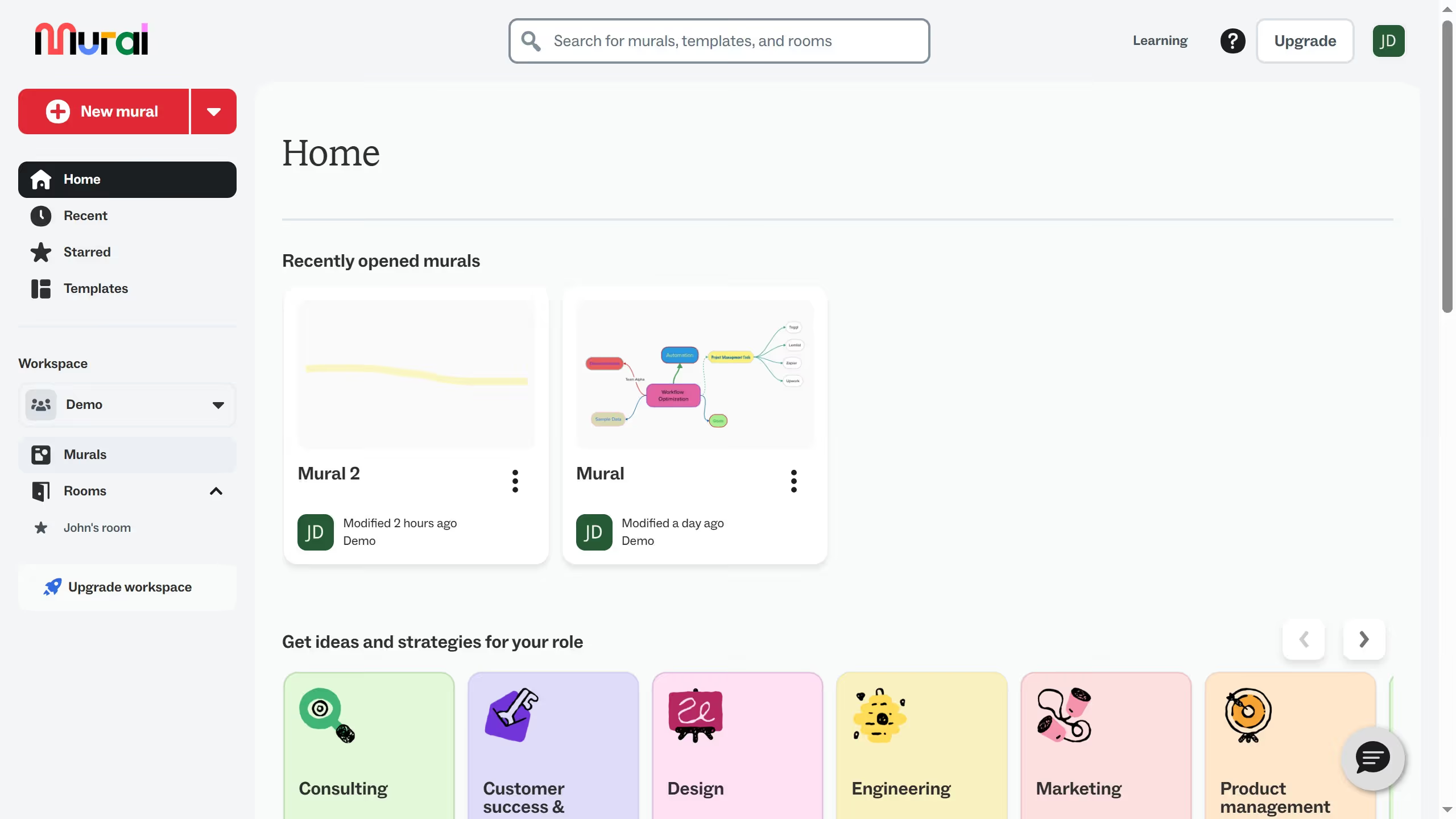
  1. First click on "Murals" in the sidebar to navigate to the murals section after logging in
  2. Then click on the mural that you want to manage to open it
  3. Then click the area that you want to delete to select it
  4. Next right-click on the "FreeForm" object to open the context menu
  5. Finally click on "Delete" button in the context menu to remove the area

Create your own interactive guide with Guideflow

Why should you delete an area after logging to Mural

Mural is an innovative digital workspace designed to boost team collaboration and creativity.

Deleting an area in Mural after logging in offers a clean slate, enabling users to focus on what's essential. By removing unnecessary or outdated areas, Mural users can streamline their workspace and enhance efficiency.

This feature helps maintain organized virtual environments, preventing clutter and ensuring that only relevant areas occupy your space. A tidy Mural enhances focus and allows teams to maximize productivity and creativity.

Last update
March 13, 2026
Cursor MariaA cursor points to a button labeled "James."

Create your first demo in less than 30 seconds.