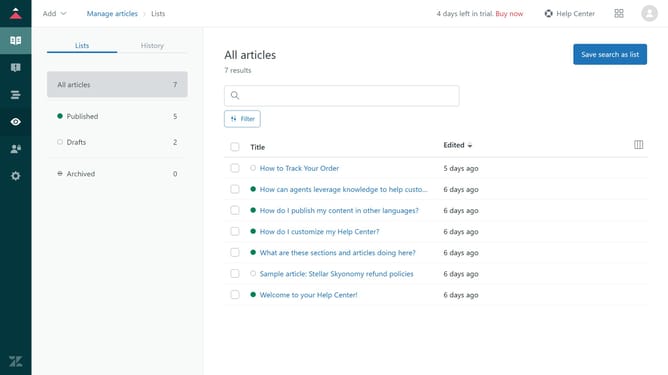
How to delete a content tag in Zendesk Guide Admin
Here is how to delete a content tag in zendesk guide admin
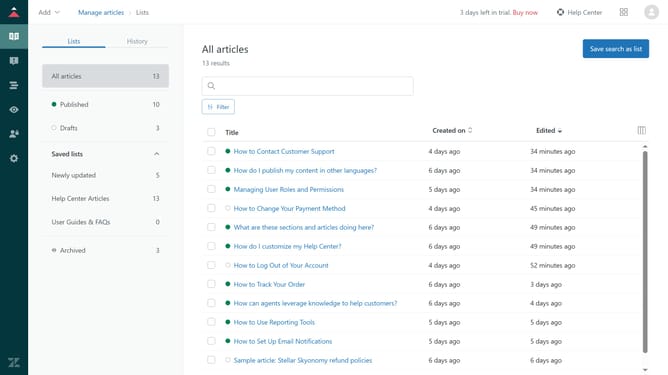
- First in Guide admin, click on the "Arrange content" icon in the left sidebar
- Then click on "Manage content tags" in the left sidebar menu
- Find the tag you want to delete in the list
- Next click the three-dot menu icon next to the tag
- Select "Delete" option from the dropdown menu
- Finally, click the "Delete content tag" button in the confirmation dialog
Why should you delete a content tag in Zendesk Guide Admin
Zendesk is a powerful customer service platform that brings efficiency and personalization to every interaction.
In Zendesk Guide Admin, the feature to delete a content tag helps maintain a clean and organized knowledge base, enhancing team productivity.
Effortlessly removing irrelevant or outdated tags streamlines content management, ensuring customers quickly find relevant information.
This tidy approach not only boosts search accuracy but also supports a more focused and effective content strategy.
Last update