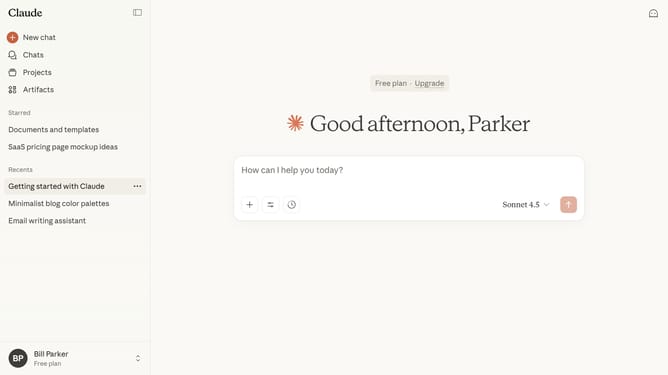
How to customize your appearance settings in Claude.ai
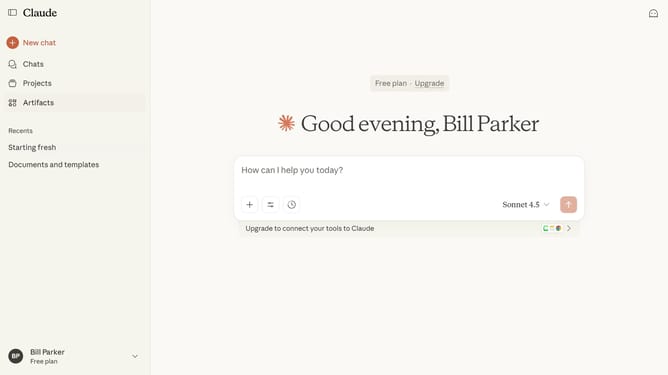
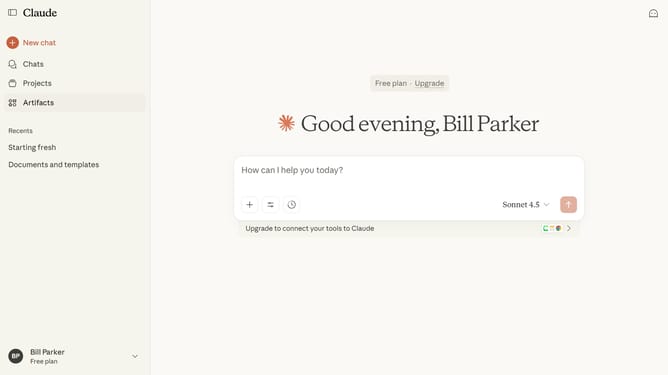
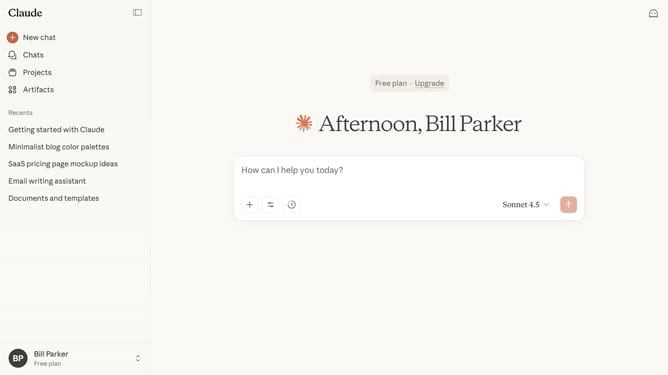
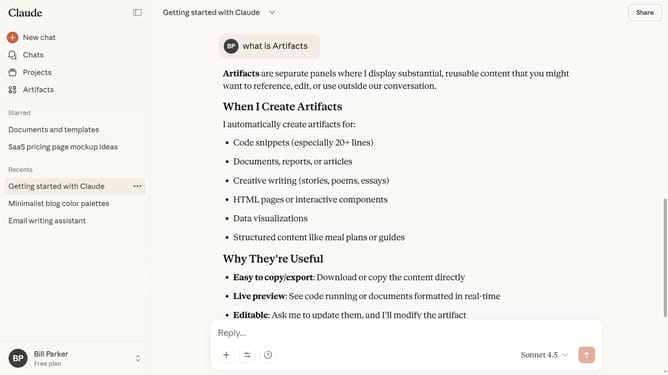
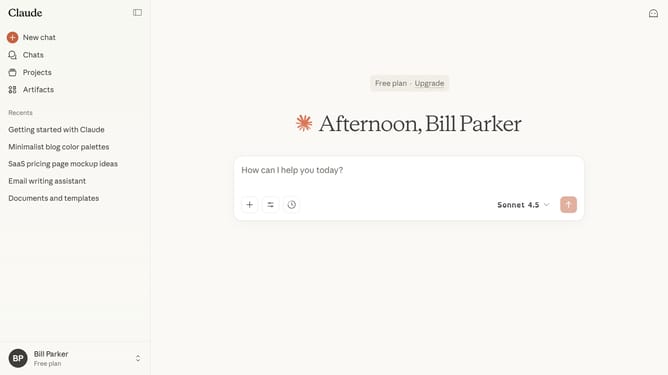
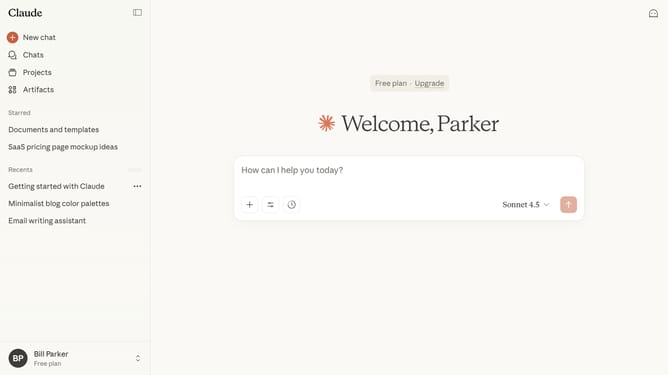
Here is how to customize your appearance settings in claude.ai
- First click on the user profile section in the bottom left corner of the sidebar
- Next click on the "Settings" option in the user menu
- Navigate to the "General" tab
- Scroll down to view the "Appearance" section in the settings panel
- To change the color mode, select Match system or Light or Dark mode under the "Color mode" section
- Under the "Chat font" section, you can choose your preferred font style from the available options
Why should you customize your appearance settings in Claude.ai
Claude.ai is a sophisticated AI assistant designed to streamline your digital tasks efficiently.
Customizing your appearance settings in Claude.ai allows users to tailor the interface to their unique preferences, enhancing usability and personal comfort.
Adjusting themes, colors, and text sizes can make navigating the platform more intuitive and visually pleasing, fostering a more engaging interaction with the AI.
These personalization options ensure that every user's experience is both productive and enjoyable, catering to individual needs and visual preferences seamlessly.
Last update