How to customize the cursor for an element in Webflow
Here is how to customize the cursor for an element in webflow
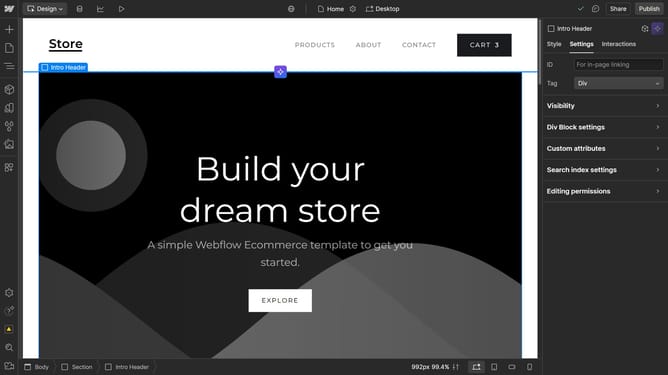
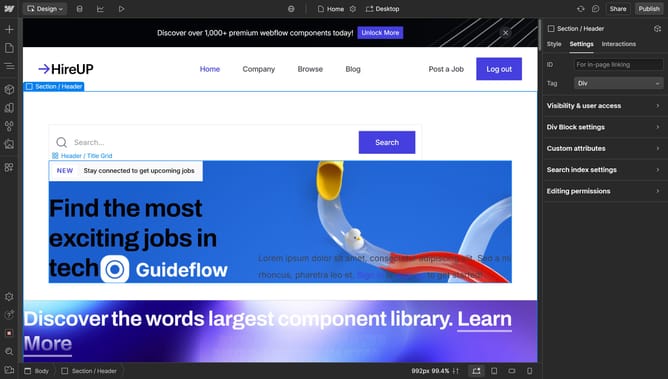
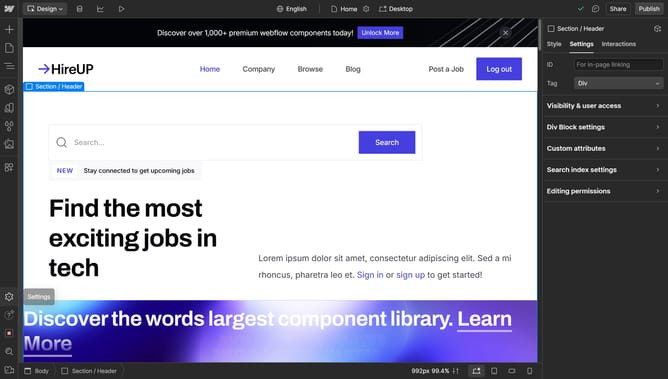
- First select the element
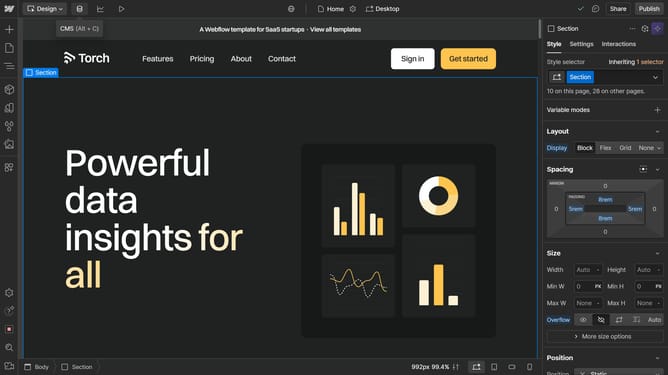
- Then click on the "Style" tab in the right sidebar to access styling options
- Next click on the "Effects" section in the right sidebar's style panel
- Then click on the "Cursor" dropdown menu in the Effects panel
- Finally choose a cursor from the cursor options dropdown menu
Why should you customize the cursor for an element in Webflow
Webflow is an innovative platform designed to empower creators by simplifying the website-building process without the need for coding.
Customizing the cursor for an element in Webflow offers a unique way to enhance user interaction and visual design. Changing the cursor style can elevate the user's browsing experience, making websites more engaging and intuitive.
Incorporating custom cursors adds a layer of professionalism and creativity to your site, allowing for distinct user interactions that align with your brand's identity. Tailoring these details helps to captivate visitors and increase user retention.
Last update