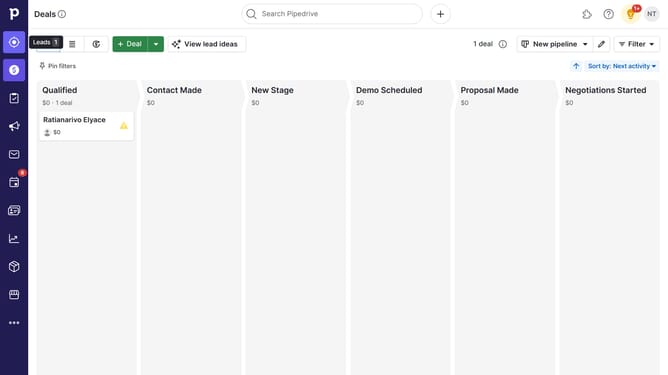
How to create and edit permissions in Pipedrive
Here is how to create and edit permissions in pipedrive
- First click on the user profile icon in the top-right corner
- Then click on "Manage users" in the dropdown menu under Company Overview section
- Click on the "Permission sets" tab in the Manage users section
- Click on the "+Permission set" button to create a new set
- Fill in the required information for your new permission set
- Click on "Save" button to create the permission set
- Here you can edit the permissions for your new set
- To add a user to your newly created set click the "Users and access" link
- Click on the checkbox next to the user's row in the users list
- Click the permission set dropdown
- Choose the permission set to assign to the user
- Save the changes by clicking the button "Edit user"
- Finally click on "Confirm" button to apply the changes
Why should you create and edit permissions in Pipedrive
Pipedrive is a powerful sales management tool designed to streamline the process of tracking and nurturing leads.
Creating and editing permissions in Pipedrive enhances your team's efficiency. By customizing access levels, you ensure that team members have the right information they need to excel in their roles.
This feature helps maintain data security, reduces instances of errors, and fosters a streamlined workflow. Flexible permissions allow for a tailored approach to collaboration, aligning responsibilities with capabilities for optimal performance.
Last update