How to create an OOO schedule for sick leave in Cal.com
Here is how to create an ooo schedule for sick leave in cal.com
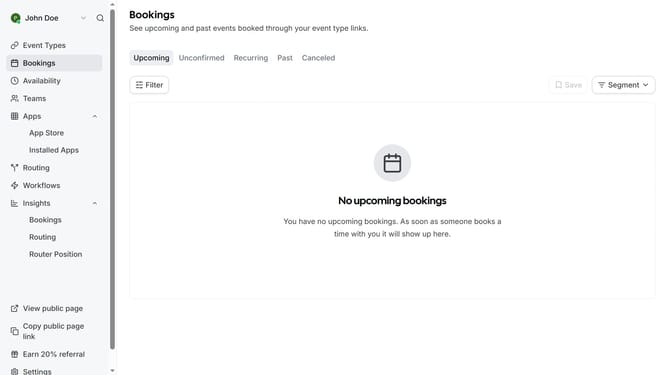
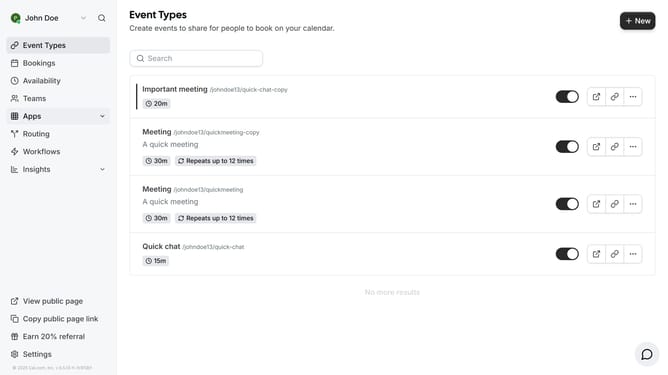
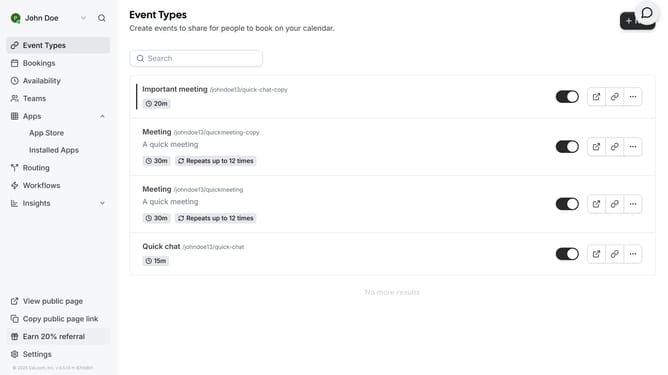
- First click on the "Settings" option in the left sidebar menu
- Then select "Out of office" from the settings menu in the left sidebar
- Click the "Add" button in the top-right corner of the screen
- In the date selection field, click to open the calendar picker
- Select the date range for your sick leave
- Click the "Reason" dropdown menu to view available options
- Select "Sick leave" from the reason dropdown list
- Finally click the "Create" button to set your out of office status
Why should you create an OOO schedule for sick leave in Cal.com
Cal.com is a seamless scheduling platform that simplifies appointment management for professionals.
Creating an Out-Of-Office (OOO) schedule for sick leave in Cal.com allows you to effectively communicate your availability during unexpected absences.
This feature ensures that your calendar automatically reflects your time away, minimizing disruptions and maintaining professionalism.
By using Cal.com for OOO schedules, you benefit from efficient organization, reduced stress, and the assurance that your commitments are managed smoothly while you focus on recovery.
Last update