How to create a text user field in Manychat
Here is how to create a text user field in manychat
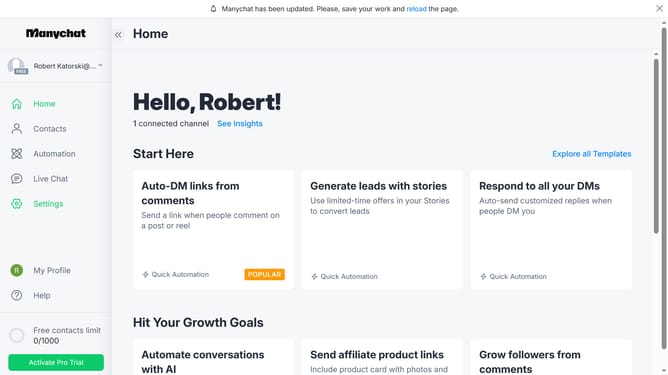
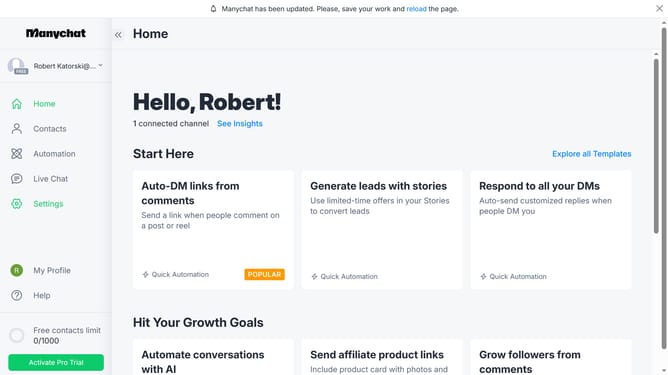
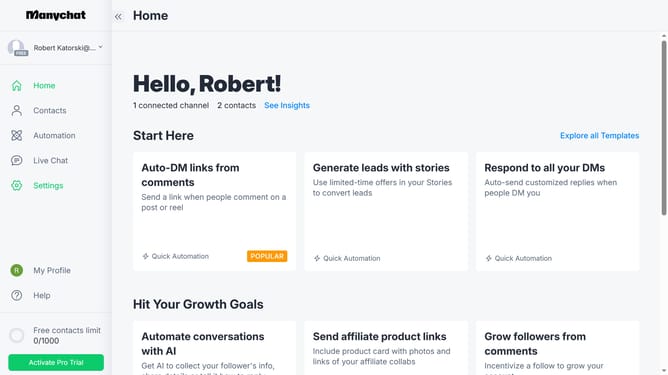
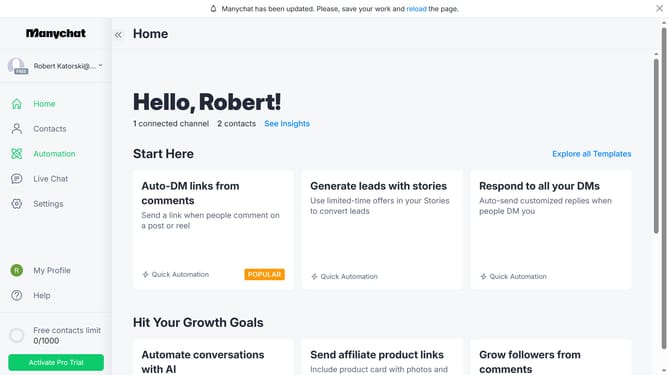
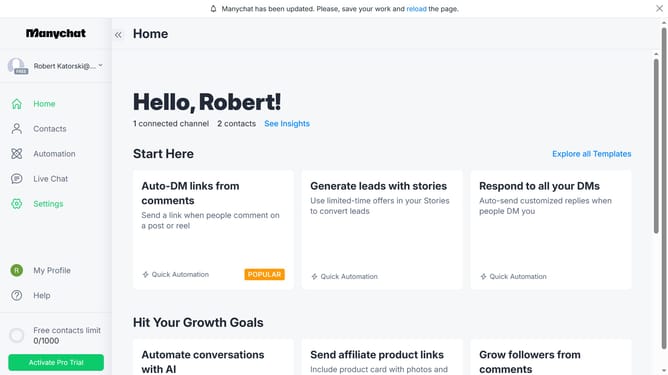
- First click on the "Settings" option in the left sidebar
- Scroll down in the general settings page
- Click "fields" in the left sidebar menu
- Scroll up in the fields settings page
- On the Fields page, click the "+ New User Field" button in the top right corner
- In the modal window that appears, click on the "Name" input field and type in the desired name for your text user field
- Select a folder from the folder dropdown options
- Select your preferred folder to create your text user field
- Finally click the "Create" button in the bottom right of the modal window
Why should you create a text user field in Manychat
Manychat is a smart tool designed to automate conversations for businesses using chatbot technology.
Creating a text user field in Manychat allows businesses to store specific customer information, enhancing personalization. This feature empowers you to tailor interactions, making each communication more engaging and meaningful.
By leveraging text user fields, businesses can better manage customer data and streamline processes, ultimately leading to improved customer relationships and increased efficiency.
Last update