How to create a banner message in HelpScout
Here is how to create a banner message in helpscout
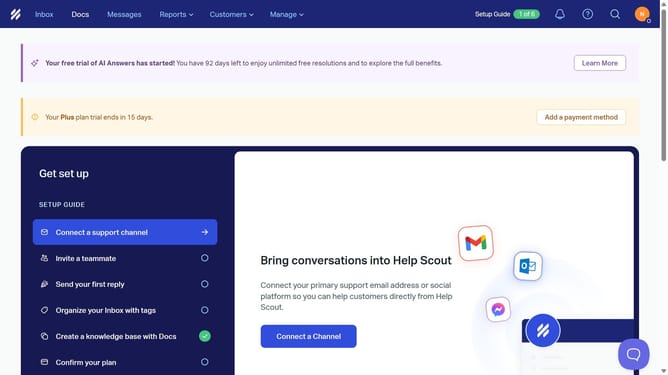
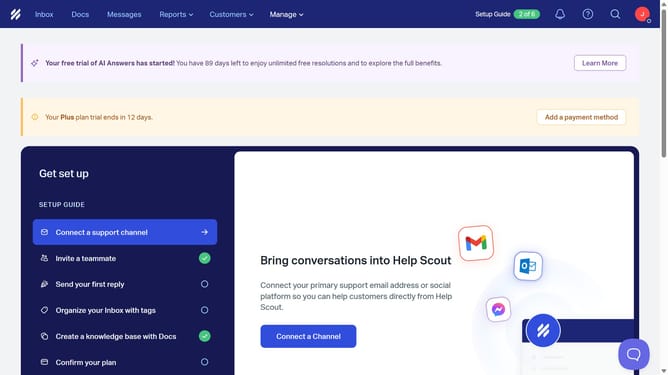
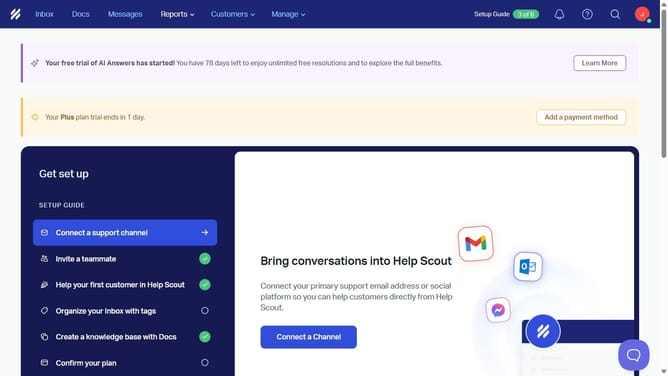
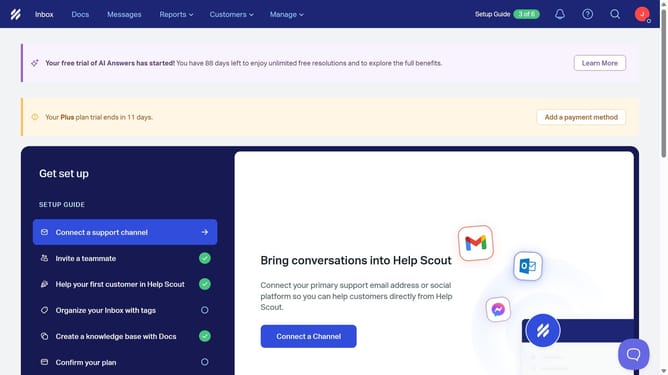
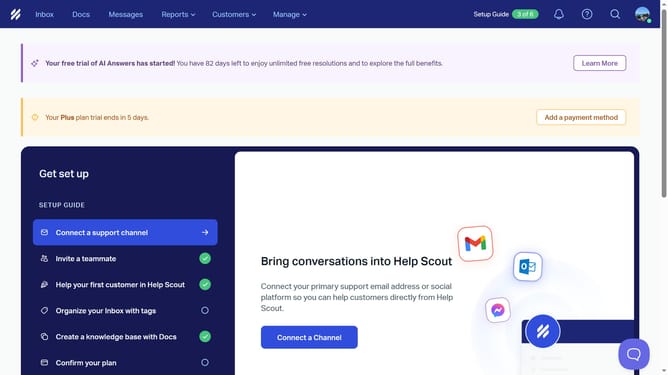
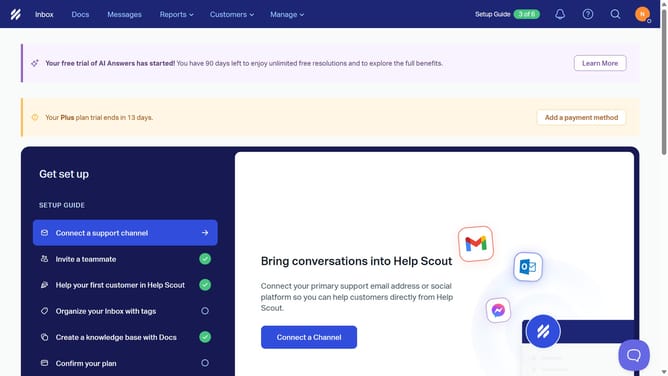
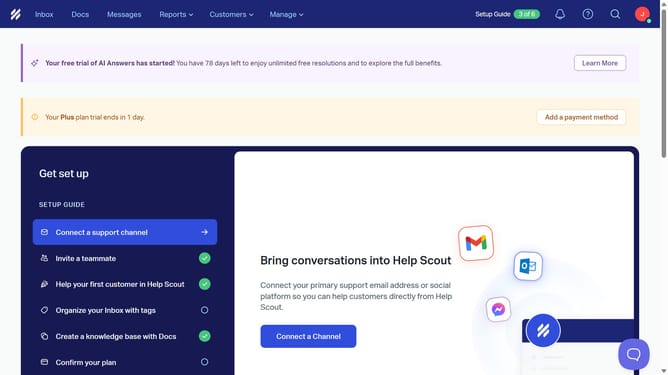
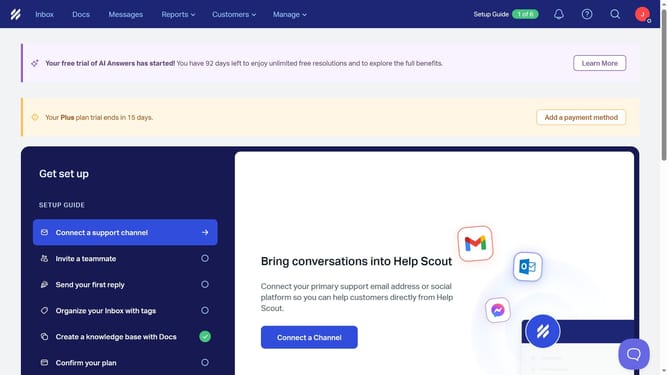
- First click on "Messages" in the top navigation menu
- Then click on "Create Message" button
- Then click in the "Name" text field and enter the message name
- Then click on the "Banner" display type option
- Then click on the "Create" button
- Then click in the "Body" text field and enter the message content
- Then click on the color picker dropdown in the "Color" section
- Then select a color option from the color picker
- Finally click on the "Save" button in the top right corner
Why should you create a banner message in HelpScout
Help Scout is an intuitive platform designed to streamline customer support and enhance team collaboration.
Creating a banner message in Help Scout is an effective way to communicate essential information directly to your customers.
It allows you to display important updates, promotions, or alerts in a noticeable area, ensuring your message generates the attention it deserves.
This feature is particularly beneficial for quickly addressing common inquiries, reducing inbound queries, and increasing customer satisfaction.
Last update