How to configure context window size for Google chat provider in n8n
Here is how to configure context window size for google chat provider in n8n
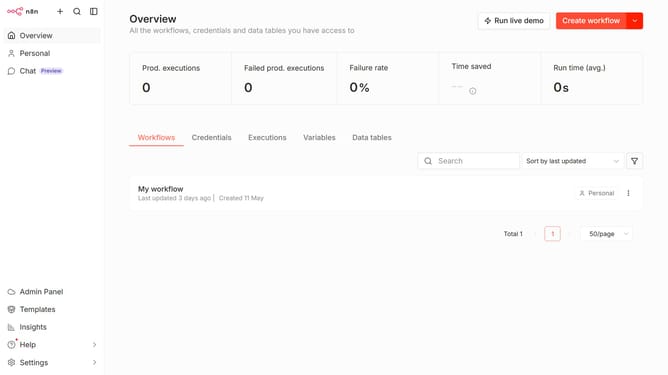
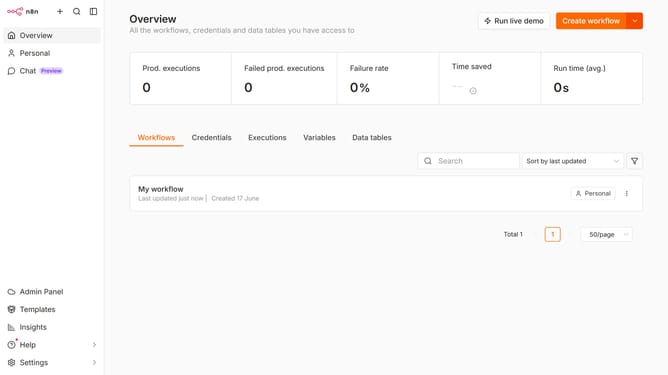
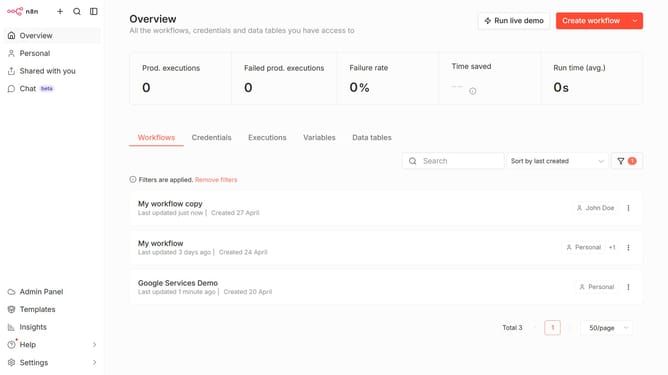
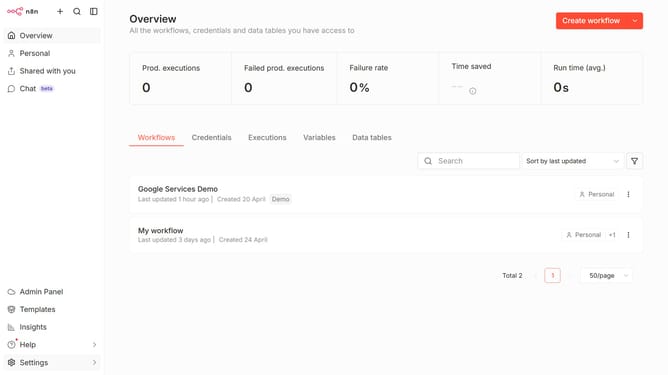
- First click on "Settings" in the left sidebar
- Then click on "Chat" in the expanded sidebar menu
- Next, click on the three dots to the right of Google
- Then click on "Edit provider"
- After that, change the "Context window (messages)" to your desired amount
- Finally, click the "Confirm" button in the modal
Why should you configure context window size for Google chat provider in n8n
n8n is an open-source workflow automation tool that seamlessly connects various apps and services.
Adjusting the context window size for Google Chat within n8n enhances your interactions by allowing for more structured and relevant conversational flows.
This feature balances message depth and scroll simplicity, fostering efficient communication tailored to your specific project needs within Google Chat.
Ultimately, optimizing your context window size leads to smoother collaborations and increased productivity.
Last update