How to change your profile picture in Calendly
Here is how to change your profile picture in calendly
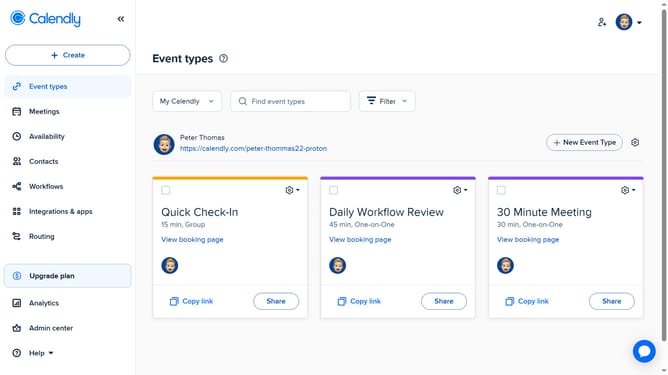
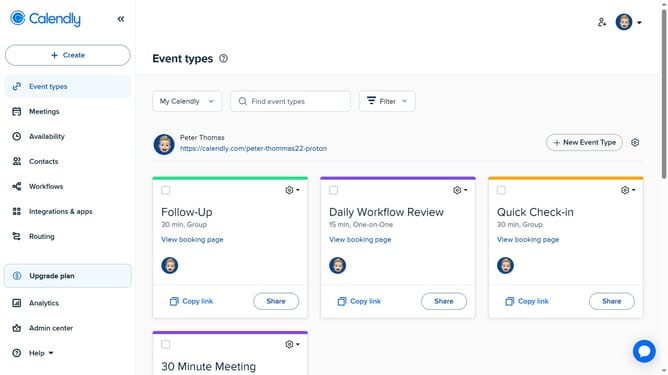
- First click on the profile picture in the top-right corner of the header
- Next click on the "Profile" option in the dropdown menu
- In the Profile page, locate the photo picture
- Then click the "Update" button and choose an image from your computer
- In the Crop Image dialog, adjust the image as needed
- Next click the "Apply" button to confirm the image crop
- Finally click the "Save Changes" button at the bottom of the profile settings page
Why should you change your profile picture in Calendly
Calendly is a user-friendly scheduling tool that simplifies meeting arrangements for individuals and businesses alike.
One of its appealing features is the ability to customize your profile picture effortlessly.
Changing your profile picture in Calendly not only personalizes your account but also enhances your professional presence, making your interactions more engaging.
Adding a profile picture helps build trust and recognition among clients and colleagues, reinforcing your brand identity seamlessly.
Last update